Conductor CLI Guide: Register, Run, Retry, and Recover Durable Workflows Without Leaving Your Terminal 💻
Maria ShimkovskaContent Engineer
Last updated: · 5 mins read
A practical guide to using the Conductor CLI to build, run, and recover workflows from the terminal.
TL;DR
What this covers
How to install and use the Conductor CLI to register workflows, trigger runs, recover from failures, and manage multiple environments — all from your terminal.
Key takeaways
The Conductor CLI lets you register, trigger, search, and recover workflows without touching a UI
Conductor persists every step's inputs and outputs, so retries always resume from recorded state — not a re-run
A failed workflow can be retried from the exact step that failed using a single CLI command
Profiles let you switch between local, staging, and production with one flag — no environment variables to juggle
The same CLI commands work against Orkes Developer Edition when you're ready to add built-in LLM tasks and multi-agent orchestration
What you'll build
A three-step password reset workflow running on local Conductor OSS — cloned from a working example and managed entirely from the terminal, including intentionally breaking it and recovering it with the CLI.
Prerequisites
Java 21+ (required for the Conductor server)
Node.js installed locally
Basic comfort with the terminal
This is for anyone who wants to build, run, and maintain their workflows from the terminal alone. I put together a working password reset workflow using Conductor OSS. Clone it, get it running, and let’s walk through what the Conductor CLI can actually do — like registering workflows, triggering runs, watching executions, recovering from failures, managing environments, and more.
One thing worth knowing before you start: when you install the CLI, it comes bundled with a local Conductor OSS server you can spin up with conductor server start. That’s what we’ll use here. But the CLI is also just a client — you can point it at any external Conductor server by setting a server URL, which is exactly what the profiles section at the end covers.
The workers are written in TypeScript. All the CLI commands work the same regardless of what language your workers are in. Which is pretty useful. 💁♀️
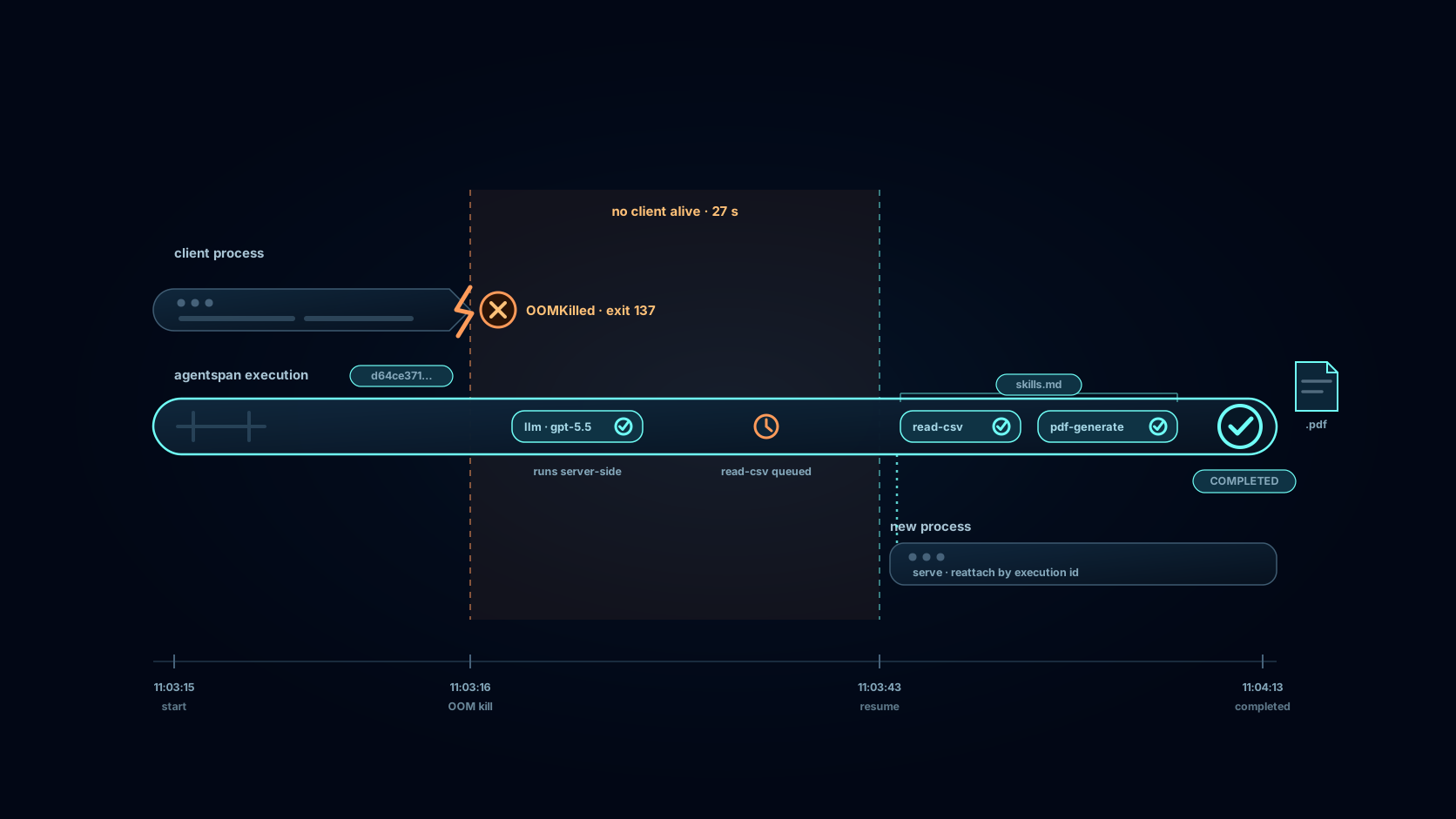
But beyond all that, here is the foundational thing Conductor was built for: durability. Every execution is persisted, every step’s inputs and outputs are recorded, and every failure is recoverable. The CLI is just the surface — what’s underneath is a workflow engine that doesn’t lose state, not when a worker crashes, not when your email provider goes down, not when you push a new version mid-flight. Let’s make that concrete.
What is the Conductor CLI?
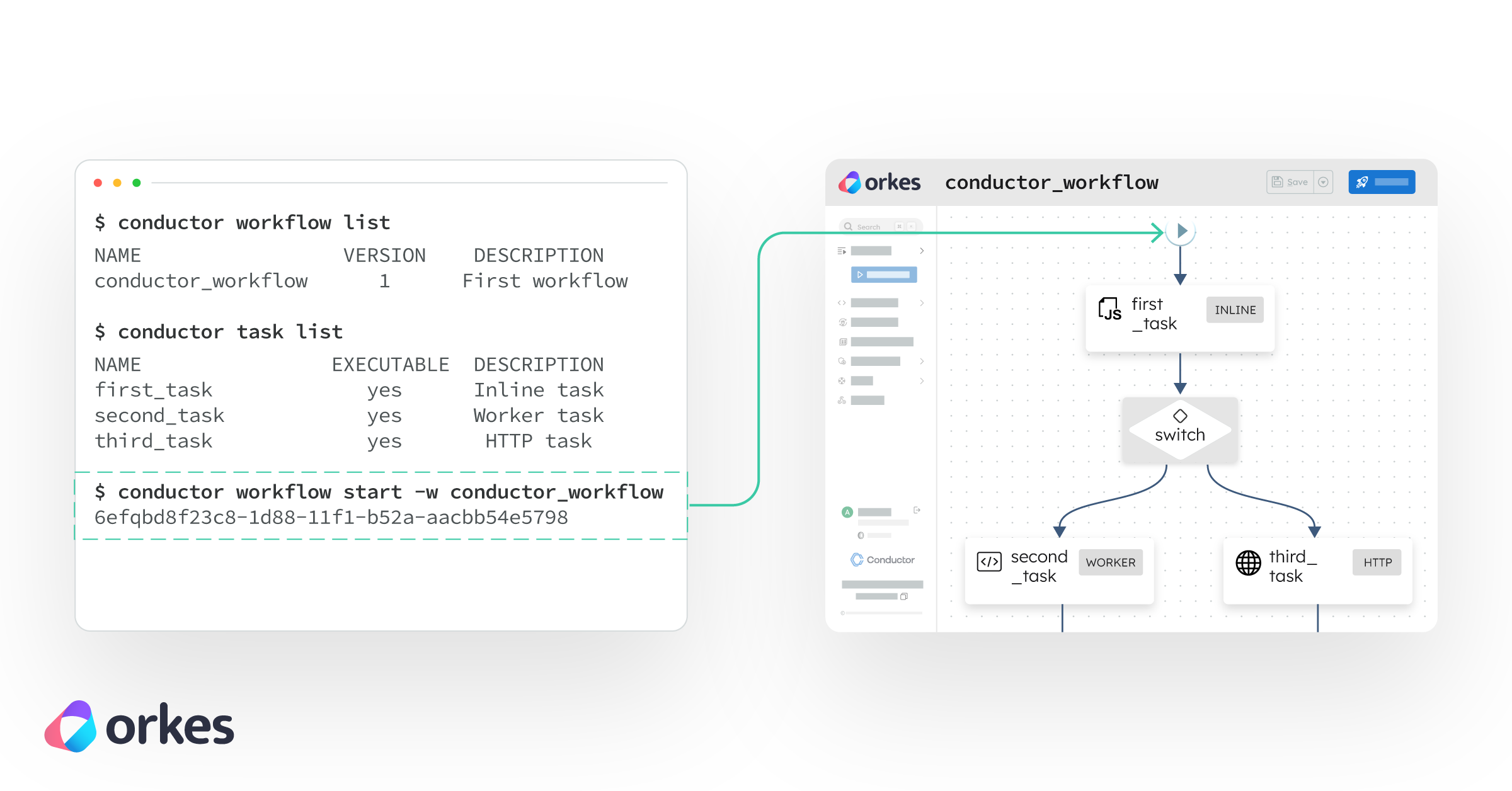
The Conductor CLI is a command-line tool for interacting with Conductor workflows. It allows you to:
Register and update workflow definitions
Start and monitor workflow executions
Retry, restart, or recover failed workflows
Search and inspect execution history
Manage multiple environments using profiles
Instead of relying on a UI, you can manage the full lifecycle of your workflows directly from the terminal.
The Conductor CLI is commonly used for workflow orchestration, automation pipelines, and managing long-running distributed processes.
What makes Conductor durable?
Conductor is designed for durable workflow execution, which means:
Every workflow execution is persisted
Each step stores its inputs and outputs
Failures do not lose progress
Retries resume from the last successful step (not from the beginning)
This allows workflows to survive:
Worker crashes
External API failures
Infrastructure restarts
Long-running execution gaps
How to set up the Conductor CLI locally (step-by-step)
I outlined the steps below so you can get the project I set up running locally so all you have to do is run the Conductor CLI commands to learn what it can do.
Prerequisite: Java 21+ (required for the Conductor server) and Node.js.
Follow these steps to install the Conductor CLI and run a workflow locally:
Then open http://localhost:8080. That’s the Conductor UI — your dashboard for watching workflows execute, inspecting every step’s inputs and outputs, and seeing exactly what went wrong when something fails. It’s empty right now. That’s about to change, but first…
What’s the workflow actually doing?
The project is a three-step password reset workflow: invalidate any existing tokens, generate a new one, then send the email. It’s a good example because step 3 can fail and retry — and when it does, Conductor automatically reuses the token from step 2 rather than generating a new one. That’s durability in action: completed step outputs are persisted, so retries always work from the same recorded state, not a re-run.
The workers live in reset-workers.ts: three async functions, one function per step/task (an individual step in a workflow) in the workflow.
The workflow blueprint is in definitions/password_reset.json and retry/timeout configs for each task are in definitions/task-definitions.json.
How to start a workflow using the Conductor CLI
From a second terminal, start a workflow execution, essentially just start the workflow :
Terminal window
conductorworkflowstart\
--workflowpassword_reset\
--input'{"email": "you@example.com"}'
The CLI returns a workflow ID (a unique identifier for each run) immediately. That ID is a durable handle and it will be valid whether the workflow finishes in 2 seconds or picks back up after an outage 2 days later.
Switch to the UI at http://localhost:8080 and click into the execution. You’ll see the three steps laid out as a graph, each turning green as it completes. Click any step to see its exact inputs, outputs, and timing. The token value, the reset URL, the expiry timestamp, all recorded durably, all visible, no log files needed. If something goes wrong, you’re not hunting through logs hoping a relevant line was written. The execution record is the log.
Wait for it synchronously if you’re scripting or using this in a CI pipeline:
Terminal window
conductorworkflowstart\
--workflowpassword_reset\
--input'{"email": "you@example.com"}'\
--sync
Tag it with a correlation ID so you can find the execution later without storing the workflow ID yourself:
thrownewError('Email provider returned 503 — service unavailable');
}
Restart the workers (npm start) and trigger another run. Watch the UI. Steps one and two complete fine. Then the email step turns red. Conductor retries it. It throws again. After hitting the retry limit configured in definitions/task-definitions.json, the workflow stops in a FAILED state.
The token was generated once. Every retry of the email step received the same token. That’s not something you had to code. That’s just how Conductor works when steps are properly separated.
How to retry and recover failed workflows in Conductor CLI
Fix the worker (remove the thrown error), restart it, then retry the failed execution from the CLI, you don’t need to start a new one:
Terminal window
conductorworkflowretry<workflow-id>
Conductor picks up from the email step with the same inputs — same token, same email — and continues. The first two steps don’t re-run. This is state persistence in practice.
Other recovery options depending on the situation:
A quick distinction worth knowing is between the retry and restart commands. They seem similar at first, but behave differently. retry is for failed workflows, so when you use that command it picks up from the task that failed and continues from there, leaving completed steps untouched. restart is for starting over entirely, so the entire workflow, not just from the step that failed. It reruns the entire workflow from step one and you can pass —pass-latest to run it against the newest workflow definitions rather than the one the original execution used. So long story short:
retry = pick up where it failed
restart = start over from the top
The pause/resume pair is worth highlighting specifically. Because Conductor’s state is durable, pausing a workflow costs nothing — there’s no in-memory state to preserve, no risk of losing progress. You can pause a workflow, redeploy your workers entirely, and resume it days later. It’ll continue exactly where it left off.
Search and monitor executions
Once this is handling real traffic you’ll want visibility into what’s running and what’s failed:
Bulk retry after an outage. Your email provider had a bad hour and thirty resets failed. Don’t touch them one by one:
Terminal window
conductorworkflowsearch\
--workflowpassword_reset\
--statusFAILED\
--json2>/dev/null\
|jq-r'.[].workflowId'\
|xargs-I{} conductor workflow retry {}
Every one of them picks up from the failed email step with the original token. No user gets a new link. No duplicate tokens. The recovery is clean and the original token expiry still applies.
# Returns: RUNNING, COMPLETED, FAILED, TERMINATED, TIMED_OUT, or PAUSED
if [ "$STATUS"="COMPLETED" ]; then
echo"Reset sent successfully"
else
echo"Something went wrong: $STATUS"
fi
The 2>/dev/null strips update notifications from stderr, leaving stdout clean for piping. The CLI always separates operational output from data output so you can script against it safely.
Manually unstick a task if a worker is misbehaving and you need to unblock the workflow:
Terminal window
conductortaskupdate-execution\
--workflow-id<workflow-id>\
--task-ref-nameemail_ref\
--statusCOMPLETED\
--output'{"sent": true, "manual": true}'
Update the workflow definition
Need to add a step — a rate-limit check, a logging task, a restructured order? Register a new version. Existing executions keep running on their version, unaffected.
Terminal window
# Bump the version to 2 in definitions/password_reset.json, then:
The CLI’s profile system makes switching between local, staging, and production a single flag rather than a pile of environment variables to remember and rotate.
8080/api
conductorconfigsave--profilelocal
conductorconfigsave--profilestaging
# Server URL: https://staging.myapp.com/api
# Auth key: your-staging-key
# Auth secret: your-staging-secret
conductorconfigsave--profileproduction
# Server URL: https://prod.myapp.com/api
# Auth key: your-prod-key
# Auth secret: your-prod-secret
When a profile is active it’s authoritative — a CONDUCTOR_SERVER_URL you exported earlier won’t override it. This prevents the specific failure mode where a production command quietly hits a dev server.
Deploy the same workflow definition across environments with one flag swap:
Ready to move beyond local and explore agentic workflows? Point it at Orkes Developer Edition
OSS gives you the full workflow engine, but if you need built-in LLM tasks or a managed server you don’t have to maintain, that’s where Orkes Cloud comes in.
Everything above runs on a local OSS Conductor server. When you’re ready to explore further, you can point the CLI at Orkes Cloud — the hosted version run by the team behind Conductor OSS. There’s a free Developer Edition, no credit card needed and there’s also no expiration date.
Beyond what’s in OSS, it also adds built-in LLM task types for 14+ AI providers (OpenAI, Anthropic, Google Gemini, AWS Bedrock, and more) so you don’t have to build and host your own custom services to build agentic workflows.
Sign up at orkes.io to get a cluster URL, auth key, and auth secret. Save them as a profile:
Terminal window
conductorconfigsave--profileorkes-dev
# Server URL: https://your-cluster.orkesconductor.io/api
# Auth key: your-key
# Auth secret: your-secret
# Server type: Enterprise
Every command you’ve used in this article now works against the Orkes cluster with one flag:
Use 2>/dev/null when scripting to suppress CLI update messages
The Conductor CLI sends update notifications to stderr, not stdout. When you’re capturing output in scripts (for example, extracting a workflow ID), these messages can interfere with parsing. Redirecting stderr to /dev/null keeps your output clean and predictable.
Default search returns 10 results (max: 1000)
By default, conductor workflow search returns only the 10 most recent executions. Use --count to increase this (up to 1000) when you need to analyze larger batches of workflows, such as after an outage or for debugging patterns.
Config files live in ~/.conductor-cli/
The CLI stores configuration and profiles locally in this directory. Each profile (like local, staging, or production) is saved as a separate file, so you can safely manage multiple environments without overwriting settings.
Use conductor --help or conductor workflow --help for more details
The CLI has built-in help commands that list all available options and flags. Use them whenever you’re unsure about syntax or want to discover additional capabilities without leaving the terminal.