ENGINEERING
How to Add Conditional Branching to Your Workflows in Orkes Conductor

Maria Shimkovska
Content Engineer
Last updated: June 18, 2026
June 18, 2026
3 min read


Join thousands of developers building the future with Orkes.
This is for you if you would prefer not to read documentation and see more examples.
I want to show you everything that's possible with the built-in tasks in Orkes Conductor.
This is part of a series covering every built-in task in Orkes Conductor. This one is for the SWITCH task.
The SWITCH task evaluates a value from a workflow input, a previous task's output, or an inline expression and routes execution to the matching branch.
Each branch is its own sequence of tasks. If no branch matches, it falls through to a default case.
Why does this matter? Because a lot of workflows you will build are non-linear and need to take different paths depending on something else. Like payments needing to get flagged, orders shipping to different regions, support tickets needing to go to different teams depending on severity, and more.
Without a built-in way to handle that, you end up writing more workflows than you need or burying decision logic in your codebase.
If you're building a file upload workflow, where users can upload images, PDFs, and videos but each file type needs to go to a completely different processing service (images, for examples, need compression, PDFs need text extraction, and videos need some type of transcoding), then you would need a step that reads the file type and sends it to the right place.
This is where you can use the Switch task for:
{
  "name": "route_by_file_type",
  "taskReferenceName": "route_by_file_type_ref",
  "type": "SWITCH",
  "evaluatorType": "value-param",
  "expression": "fileType",
  "inputParameters": {
    "fileType": "${workflow.input.fileType}"
  },
  "decisionCases": {
    "image": [
      {
        "name": "compress_image",
        "taskReferenceName": "compress_image_ref",
        "type": "HTTP",
        "inputParameters": {
          "uri": "https://processing.internal/compress",
          "method": "POST",
          "body": { "fileUrl": "${workflow.input.fileUrl}" }
        }
      }
    ],
    "pdf": [
      {
        "name": "extract_text",
        "taskReferenceName": "extract_text_ref",
        "type": "HTTP",
        "inputParameters": {
          "uri": "https://processing.internal/extract",
          "method": "POST",
          "body": { "fileUrl": "${workflow.input.fileUrl}" }
        }
      }
    ],
    "video": [
      {
        "name": "transcode_video",
        "taskReferenceName": "transcode_ref",
        "type": "HTTP",
        "inputParameters": {
          "uri": "https://processing.internal/transcode",
          "method": "POST",
          "body": { "fileUrl": "${workflow.input.fileUrl}" }
        }
      }
    ]
  },
  "defaultCase": []
}
The file type comes in as a workflow input, the SWITCH reads it, and the right processing service gets called. One workflow handles every file type you don't need a separate workflow for images, another for PDFs, and another for videos.
The JSON code for the Switch task can be longer than other Conductor tasks, but that's because you need to also account for the different paths, like the image, pdf, and video. You can see them in the JSON snippet above.
If you're building a notification workflow, where some users want email, some prefer SMS, and others have set up Slack, then you would need a step that checks the user's preference and sends the message to the right place.
Here is what this could look like in your workflow definition:
{
  "name": "route_by_channel",
  "taskReferenceName": "route_by_channel_ref",
  "type": "SWITCH",
  "evaluatorType": "value-param",
  "expression": "preferredChannel",
  "inputParameters": {
    "preferredChannel": "${get_user_prefs_ref.output.response.body.notificationChannel}"
  },
  "decisionCases": {
    "email": [
      {
        "name": "send_email",
        "taskReferenceName": "send_email_ref",
        "type": "HTTP",
        "inputParameters": {
          "uri": "https://notifications.internal/email",
          "method": "POST",
          "body": { "to": "${workflow.input.email}", "message": "${workflow.input.message}" }
        }
      }
    ],
    "sms": [
      {
        "name": "send_sms",
        "taskReferenceName": "send_sms_ref",
        "type": "HTTP",
        "inputParameters": {
          "uri": "https://notifications.internal/sms",
          "method": "POST",
          "body": { "phone": "${workflow.input.phone}", "message": "${workflow.input.message}" }
        }
      }
    ],
    "slack": [
      {
        "name": "send_slack",
        "taskReferenceName": "send_slack_ref",
        "type": "HTTP",
        "inputParameters": {
          "uri": "https://notifications.internal/slack",
          "method": "POST",
          "body": { "slackId": "${workflow.input.slackId}", "message": "${workflow.input.message}" }
        }
      }
    ]
  },
  "defaultCase": []
}
The workflow reads the user's saved preference and calls the right notification service.
The message is the same only the delivery method changes. Without the SWITCH task, you'd be writing that if/else yourself somewhere in your application code.
Ah, a classic example we are all familiar with.
If you're building a signup workflow, where users can register with Google, with their email and password, or through SSO via their company, then each path needs different steps Google sign ups need an OAuth token exchange, email sign ups need a password to be hashed and stored, SSO sign ups need to be validated against the company's identity provider.
{
  "name": "route_by_auth_method",
  "taskReferenceName": "route_by_auth_ref",
  "type": "SWITCH",
  "evaluatorType": "value-param",
  "expression": "authMethod",
  "inputParameters": {
    "authMethod": "${workflow.input.authMethod}"
  },
  "decisionCases": {
    "google": [
      {
        "name": "exchange_google_token",
        "taskReferenceName": "google_oauth_ref",
        "type": "HTTP",
        "inputParameters": {
          "uri": "https://auth.internal/google/exchange",
          "method": "POST",
          "body": { "code": "${workflow.input.oauthCode}" }
        }
      }
    ],
    "email": [
      {
        "name": "create_email_account",
        "taskReferenceName": "email_signup_ref",
        "type": "HTTP",
        "inputParameters": {
          "uri": "https://auth.internal/email/register",
          "method": "POST",
          "body": { "email": "${workflow.input.email}", "password": "${workflow.input.password}" }
        }
      }
    ],
    "sso": [
      {
        "name": "validate_sso",
        "taskReferenceName": "sso_ref",
        "type": "HTTP",
        "inputParameters": {
          "uri": "https://auth.internal/sso/validate",
          "method": "POST",
          "body": { "samlToken": "${workflow.input.samlToken}", "domain": "${workflow.input.domain}" }
        }
      }
    ]
  },
  "defaultCase": []
}
With a built-in Switch task one signup workflow can handle every authentication method you want to support.
The SWITCH reads how the user registered and calls the right service.
Whatever comes after creating the user's profile, sending a welcome email, setting up their workspace runs the same way regardless of how they got in.
The SWITCH task itself doesn't return data. The tasks inside the branch that ran return their own outputs as normal.
The one thing the SWITCH does return is selectedCase, which tells you which branch was taken:
${route_by_file_type_ref.output.selectedCase}
One thing to know: if no branch matches and defaultCase is [], the workflow keeps going without failing. It just skips the SWITCH task and moves to the next task in your workflow.
We built this task so your branching logic lives inside the workflow, not in your codebase.
Any time your workflow needs to take a different path based on a value, a score, a status, or a condition, the SWITCH task handles it natively.
If you're about to write an if/else in a custom worker just to decide which API to call next, you can just use the built-in task, simplfying your own code.
The fastest way to see this in action is to spin up a free Developer Edition account of Orkes Conductor.
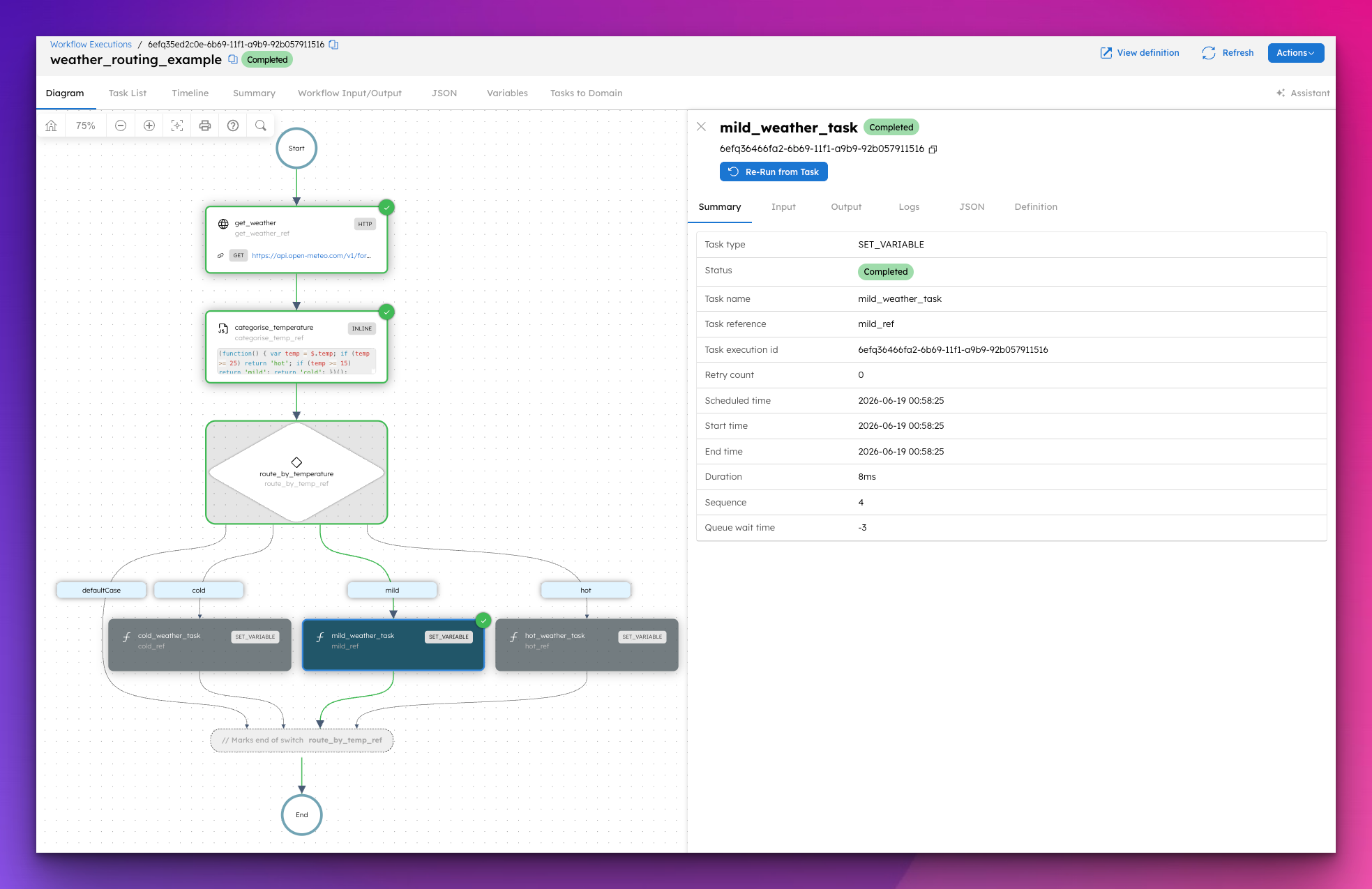
This workflow fetches the current weather for any city using a public API, then uses a SWITCH task to route to a different outcome based on whether it's hot, mild, or cold. Just paste this into Conductor and hit Execute. It will build and run right away.
{
"name": "weather_routing_example",
"description": "Fetches current weather for a city and routes based on temperature using a SWITCH task.",
"version": 1,
"tasks": [
{
"name": "get_weather",
"taskReferenceName": "get_weather_ref",
"type": "HTTP",
"inputParameters": {
"uri": "https://api.open-meteo.com/v1/forecast?latitude=${workflow.input.latitude}&longitude=${workflow.input.longitude}¤t_weather=true",
"method": "GET",
"accept": "application/json"
}
},
{
"name": "categorise_temperature",
"taskReferenceName": "categorise_temp_ref",
"type": "INLINE",
"inputParameters": {
"evaluatorType": "graaljs",
"expression": "(function() { var temp = $.temp; if (temp >= 25) return 'hot'; if (temp >= 15) return 'mild'; return 'cold'; })();",
"temp": "${get_weather_ref.output.response.body.current_weather.temperature}"
}
},
{
"name": "route_by_temperature",
"taskReferenceName": "route_by_temp_ref",
"type": "SWITCH",
"evaluatorType": "value-param",
"expression": "tempCategory",
"inputParameters": {
"tempCategory": "${categorise_temp_ref.output.result}"
},
"decisionCases": {
"hot": [
{
"name": "hot_weather_task",
"taskReferenceName": "hot_ref",
"type": "SET_VARIABLE",
"inputParameters": {
"recommendation": "It's hot outside. Stay hydrated."
}
}
],
"mild": [
{
"name": "mild_weather_task",
"taskReferenceName": "mild_ref",
"type": "SET_VARIABLE",
"inputParameters": {
"recommendation": "Great weather for a walk."
}
}
],
"cold": [
{
"name": "cold_weather_task",
"taskReferenceName": "cold_ref",
"type": "SET_VARIABLE",
"inputParameters": {
"recommendation": "Bundle up it's cold out there."
}
}
]
},
"defaultCase": []
}
],
"inputParameters": [
"latitude",
"longitude"
],
"outputParameters": {
"temperature": "${get_weather_ref.output.response.body.current_weather.temperature}",
"category": "${categorise_temp_ref.output.result}"
},
"schemaVersion": 2,
"restartable": true,
"workflowStatusListenerEnabled": false,
"timeoutPolicy": "ALERT_ONLY",
"timeoutSeconds": 0
}
The workflow fetches the live temperature, categorises it with an INLINE task, and the SWITCH task routes to the matching branch. You can see exactly which path was taken in the Conductor UI the moment it finishes.
The routing, the branching, the conditional paths are already handled. The code you write is your business logic.
This is part of a series covering every built-in task in Orkes Conductor. Next up: the Inline task.