- ENGINEERING
- PRODUCT
Everything you need to build workflows as code in Conductor
 Maria Shimkovska Content Engineer
 Sometimes you’re just most comfortable working in code. If you want to build, run, and manage your workflows entirely in code, this blog is for you.
Follow along with one example and you’ll see exactly how that looks in Conductor, and every tool you have available to build it, end to end. I’ll build one real workflow the whole way through. It approves travel expenses for a startup whose employees are always on the road, so there are flights, hotels, taxis, and conference tickets to reimburse.
The workflow itself is just an example. What I really want you to see is which piece of Orkes handles which part, so you recognize them later when you’re building something of your own. Come back to this post whenever you want to build your workflows using code.
I’m going to talk through a workflow, and here’s what it does. Anything under $100 gets approved automatically. Anything over $100 goes to the employee’s manager. Once it’s approved, we update the accounting system and notify the employee at the same time.
Im using the Python SDK here, but pick whichever language you prefer.
The expense workflow in one picture
Employees at our imaginary startup travel to conferences and customer meetings, and expense flights, hotels, food, and taxis. When they get back, they just want to get reimbursed, so we need an easy system for that, one where they submit the expense and the rest happens on its own:
- Expenses under $100 are approved automatically.
- Anything at 100 or above goes to the employee’s manager.
- Once approved, accounting is updated and the employee is notified, in parallel.
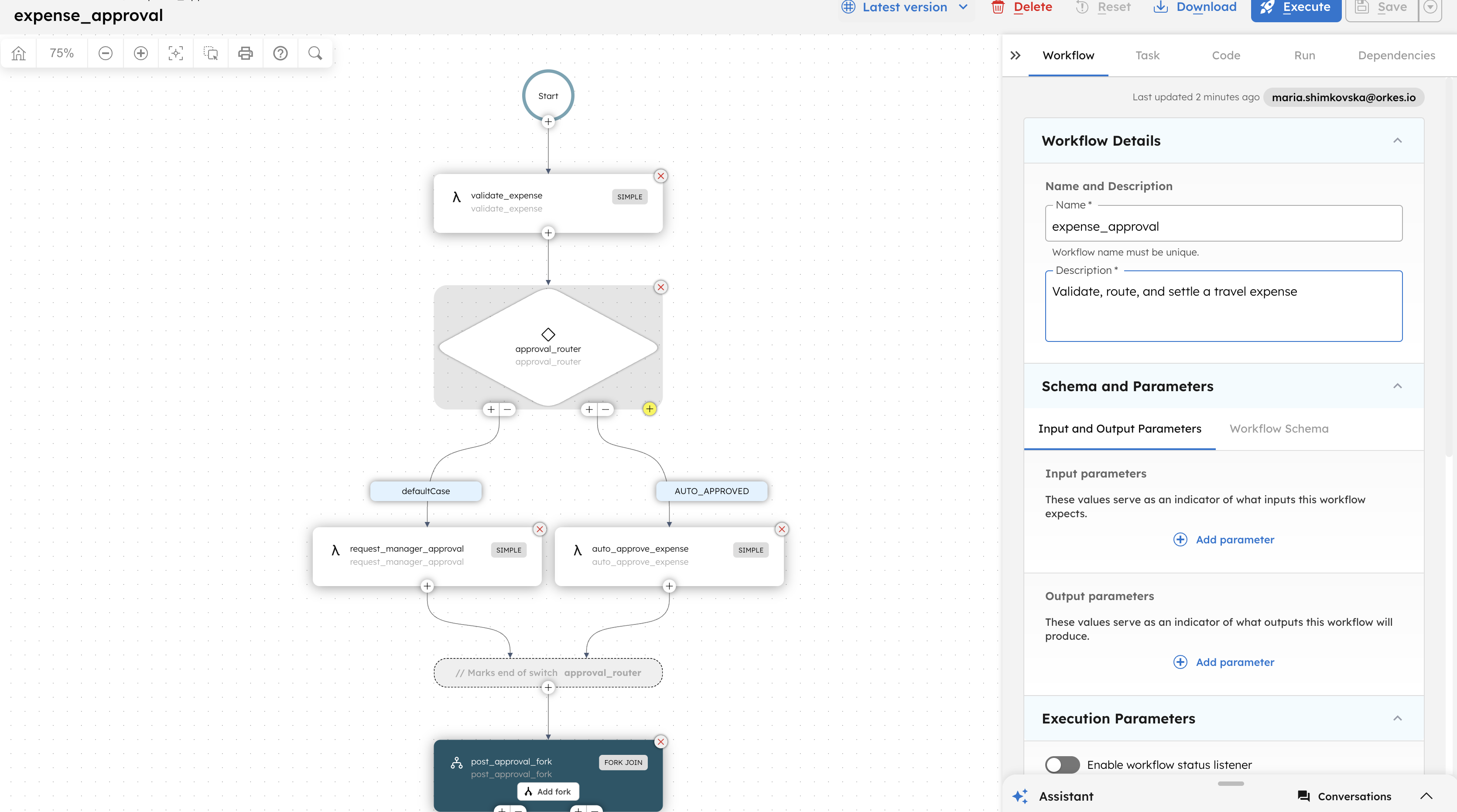
submit expense │ ▼ ┌─────────────────┐ │ validate_expense│ └────────┬────────┘ │ ▼ ┌─────────────────┐ │ approval_router │ └────────┬────────┘ ┌────────┴─────────┐ AUTO_APPROVED default ▼ ▼ ┌─────────────┐ ┌─────────────────┐ │auto_approve_│ │request_manager_ │ │expense │ │approval │ └──────┬──────┘ └────────┬────────┘ └────────┬─────────┘ ▼ post_approval_fork ┌────────┴─────────┐ ▼ ▼ ┌─────────────┐ ┌─────────────────┐ │update_ │ │notify_employee │ │accounting │ │ │ └──────┬──────┘ └────────┬────────┘ └────────┬─────────┘ ▼ post_approval_join │ ▼ doneI’m giving this example in Python because it’s the language I’m most used to. That’s the only reason. You can build this exact workflow in any of the other SDKs, and I’ll come back to those in a moment.
Everything Orkes gives you to build and run workflows in code
Here’s every tool available to you, so you know what to reach for as you follow along below.
SDKs for your language
The main way I write workflows as code is through one of the Conductor SDKs, and there are quite a few of them: Python, Java, Go, TypeScript, C#, Ruby, Rust, and Clojure. They all do the same things. You define workflows, register task definitions, write workers, start runs, and manage everything from code.
I reach for Python out of habit, so that’s what you’ll see for the rest of this tutorial. Nothing here depends on it. If your team writes Go or TypeScript, use that instead and the code will look close to what I’ve written.
pip install conductor-python # How to install the Python SDKnpm install @io-orkes/conductor-javascript # How to install the TypeScript / JavaScript SDK if you prefer that insteadThe CLI
The CLI does the same kind of work from your terminal: register a workflow definition from a JSON file, search runs by status, retry or restart a failed one, put a workflow on a schedule, manage secrets, stream your local server’s logs, or connect Conductor into a CI/CD pipeline. It can even run a worker for you directly, no SDK required, by pointing it at a script or a JavaScript file and letting it poll for a task type on its own.
npm install -g @conductor-oss/conductor-cliA local server for development
Everything below runs against Developer Edition, but you don’t need an account to try it first. The CLI can also start a full Conductor server on your own machine:
conductor server startThat gives you a server at http://localhost:8080 with no account or credentials needed. Swap the base_url in the code below and drop the credentials, and everything else works exactly the same way. It’s a good way to kick the tires before you connect to a shared environment, and some teams keep using it for local dev even after they’re set up on Developer Edition.
The Conductor UI
Every run shows up in the Conductor UI, whether it’s local or in Orkes. You can watch each task change state, see the input and output at every step, and read the failure reason when something breaks. This tutorial prints an execution URL when the workflow starts, so you can follow along live.
Building the expense workflow in code
Here’s the whole thing, start to finish. First, connect to your cluster and create the workflow shell:
from conductor.client.configuration.configuration import Configurationfrom conductor.client.configuration.settings.authentication_settings import AuthenticationSettingsfrom conductor.client.workflow.conductor_workflow import ConductorWorkflowfrom conductor.client.workflow.executor.workflow_executor import WorkflowExecutorfrom conductor.client.workflow.task.simple_task import SimpleTaskfrom conductor.client.workflow.task.switch_task import SwitchTaskfrom conductor.client.workflow.task.fork_task import ForkTaskfrom conductor.client.workflow.task.join_task import JoinTaskfrom conductor.client.automator.task_handler import TaskHandlerfrom conductor.client.worker.worker_task import worker_taskfrom conductor.client.http.models.task_def import TaskDef
# Sign up for a free account at https://developer.orkescloud.com, then find# your Key ID and Secret under Applications in the left nav.conf = Configuration(    base_url='https://developer.orkescloud.com',    authentication_settings=AuthenticationSettings(        key_id='_KEY_ID_',        key_secret='_KEY_SECRET_'    ))
# Running against `conductor server start` instead? Drop the credentials:# conf = Configuration(base_url='http://localhost:8080')
executor = WorkflowExecutor(conf)
workflow = ConductorWorkflow(    executor=executor,    name='expense_approval',    description='Validate, route, and settle a travel expense',    version=1)
Now the tasks, in the same order they appear in the diagram:
validate_expense = SimpleTask(    task_def_name='validate_expense',    task_reference_name='validate_expense').input(key='amount', value='${workflow.input.amount}') \ .input(key='employeeId', value='${workflow.input.employeeId}') \ .input(key='category', value='${workflow.input.category}')
auto_approve_expense = SimpleTask(    task_def_name='auto_approve_expense',    task_reference_name='auto_approve_expense').input(key='amount', value='${validate_expense.output.amount}')
request_manager_approval = SimpleTask(    task_def_name='request_manager_approval',    task_reference_name='request_manager_approval').input(key='amount', value='${validate_expense.output.amount}') \ .input(key='employeeId', value='${validate_expense.output.employeeId}')
approval_router = SwitchTask(    task_ref_name='approval_router',    case_expression='${validate_expense.output.route}')approval_router.switch_case('AUTO_APPROVED', [auto_approve_expense])approval_router.default_case([request_manager_approval])
update_accounting = SimpleTask(    task_def_name='update_accounting',    task_reference_name='update_accounting').input(key='amount', value='${validate_expense.output.amount}')
notify_employee = SimpleTask(    task_def_name='notify_employee',    task_reference_name='notify_employee').input(key='employeeId', value='${validate_expense.output.employeeId}')
post_approval_fork = ForkTask(    task_ref_name='post_approval_fork',    forked_tasks=[[update_accounting], [notify_employee]])
post_approval_join = JoinTask(    task_ref_name='post_approval_join',    join_on=['update_accounting', 'notify_employee'])
workflow.add(validate_expense)workflow.add(approval_router)workflow.add(post_approval_fork)workflow.add(post_approval_join)
Notice approval_router isn’t making the $100 decision itself. It’s just routing on a route value that validate_expense already computed. That’s on purpose. The SWITCH task is Conductor’s control flow; the actual business rule (“is this under $100”) is a line of Python in your worker, which is exactly where you’d want it. You’ll see that worker next.
post_approval_fork and post_approval_join are how “update accounting” and “notify the employee” run at the same time instead of one after the other. The fork lists out the two branches; the join names which task reference in each branch it’s waiting on before the workflow moves on.
Writing the workers
This is where the actual logic lives: the part that would’ve been a separate service, a Lambda, or a cron job if you weren’t using Conductor.
@worker_task(task_definition_name='validate_expense')def validate_expense(amount: float, employeeId: str, category: str) -> dict:    if amount <= 0:        raise ValueError(f"Invalid expense amount: {amount}")    route = 'AUTO_APPROVED' if amount < 100 else 'MANAGER_REQUIRED'    return {        'amount': amount,        'employeeId': employeeId,        'category': category,        'route': route    }

@worker_task(task_definition_name='auto_approve_expense')def auto_approve_expense(amount: float) -> dict:    print(f"Auto-approved ${amount:.2f}")    return {'status': 'APPROVED', 'approvedBy': 'system'}

@worker_task(    task_definition_name='request_manager_approval',    register_task_def=True,    task_def=TaskDef(        name='request_manager_approval',        retry_count=0,        timeout_seconds=86400,        # give the manager a full day        response_timeout_seconds=3600    ))def request_manager_approval(amount: float, employeeId: str) -> dict:    # Standing in for a real approval step. In production you'd likely swap    # this for Conductor's HUMAN task type so a manager approves or rejects    # it right from the UI, with this worker just handling the notification.    print(f"Routing ${amount:.2f} to {employeeId}'s manager for approval")    return {'status': 'APPROVED', 'approvedBy': 'manager'}

@worker_task(    task_definition_name='update_accounting',    register_task_def=True,    task_def=TaskDef(        name='update_accounting',        retry_count=3,        retry_logic='EXPONENTIAL_BACKOFF',        timeout_seconds=60,        response_timeout_seconds=30    ))def update_accounting(amount: float) -> dict:    print(f"Booked ${amount:.2f} to the expense ledger")    return {'status': 'POSTED'}

@worker_task(task_definition_name='notify_employee')def notify_employee(employeeId: str) -> dict:    print(f"Notified {employeeId} that their expense was processed")    return {'status': 'SENT'}
That task_def on update_accounting is the “set your retry rules and timeouts in code” part from earlier: three retries with exponential backoff, because the accounting system occasionally throttles us, and a minute before giving up. register_task_def=True pushes that definition to Conductor the first time your worker starts, so you never have to separately curl a JSON file at it.
Register it and run it
workflow.register(overwrite=True)print(f"Registered: {workflow.name}")
task_handler = TaskHandler(    workers=[],    configuration=conf,    scan_for_annotated_workers=True)task_handler.start_processes()
run = executor.execute(    name=workflow.name,    version=workflow.version,    workflow_input={        'amount': 45.00,        'employeeId': 'emp-203',        'category': 'taxi'    })print(f"{conf.ui_host}/execution/{run.workflow_id}")
task_handler.stop_processes()
Run that once with 'amount': 45.00 and once with something like 'amount': 320.00 for a conference ticket, and you’ll see both branches from the diagram actually happen. The $45 taxi clears instantly through auto_approve_expense. The $320 ticket goes through request_manager_approval instead. Both end up at update_accounting and notify_employee running side by side.
Here’s what you’ll see printed for the $45 taxi:
Registered: expense_approvalAuto-approved $45.00Booked $45.00 to the expense ledgerNotified emp-203 that their expense was processedhttps://developer.orkescloud.com/execution/3f29e1b4-7c2a-4e9d-9b1a-2c6f8a1d9e77And for the $320 conference ticket, approval_router takes the other branch:
Registered: expense_approvalRouting $320.00 to emp-203's manager for approvalBooked $320.00 to the expense ledgerNotified emp-203 that their expense was processedhttps://developer.orkescloud.com/execution/91b4e2a0-5f3d-4a1c-8e7b-6a2d9f0c3b58Your workflow ID will be a different UUID each run, and since update_accounting and notify_employee run in parallel, those two lines can print in either order.
Watch it in the Conductor UI
Every run prints its own execution URL, from the line above. Open it (local server or Orkes, same UI either way) and you’ll see the whole graph from the diagram lit up: validate_expense green and done, approval_router showing which case it took, and the fork branches running in parallel. Click into any task and you get its exact input and output, which is usually faster than adding a print statement and re-running the whole thing.
When a task fails: retry it
Say the accounting system is actually down for a minute and update_accounting fails after using up its three retries. The workflow stops there instead of silently losing the expense. Once the system’s back up, you don’t need to re-run everything from scratch. Just retry the task that failed:
conductor workflow retry <workflow-id>workflow <workflow-id> retry initiated successfullyThat resumes the workflow from the failed task, with everything before it (validate_expense, approval_router, the approval step) left untouched. This is one of the bigger reasons to put a process like this in Conductor instead of a plain script: a script that dies partway through an expense approval needs you to figure out by hand what already happened. A Conductor workflow already knows.
Put it on a schedule
Maybe expenses don’t need to run the instant they’re submitted. Maybe you’d rather batch and run approvals every weekday morning instead. That’s a schedule, not a workflow change:
conductor schedule create \ --name daily-expense-batch \ --workflow expense_approval \ --cron "0 9 * * MON-FRI" \ --input '{"amount": 45.00, "employeeId": "emp-203", "category": "taxi"}'The command doesn’t print anything back when it works. That’s just how the CLI behaves here. Confirm it landed with get:
conductor schedule get daily-expense-batch{ "name": "daily-expense-batch", "cronExpression": "0 9 * * MON-FRI", "paused": false, "startWorkflowRequest": { "name": "expense_approval", "version": 1, "input": { "amount": 45.0, "employeeId": "emp-203", "category": "taxi" } }, "createTime": 1759747200000, "updatedTime": 1759747200000}Conductor takes it from there. No cron job to babysit on some box somewhere, no “did the server restart and lose my crontab” page at 2 a.m.
Version it as the rules change
Say finance decides the auto-approval limit should be $150, not $100. You don’t edit the workflow that’s already running. You register a new version:
workflow_v2 = ConductorWorkflow( executor=executor, name='expense_approval', description='Raise the auto-approval threshold to $150', version=2)# ...same tasks, wired up the same way...workflow_v2.register(overwrite=True)And the one line that actually changes lives in the worker, not the workflow:
route = 'AUTO_APPROVED' if amount < 150 else 'MANAGER_REQUIRED'Expenses already in flight on version 1 keep running against version 1’s rules until they finish. New ones pick up version 2. Nothing in production breaks while you change your mind about a number.
Everything, together
Validate in code. Route in code, with the actual rule living in a worker instead of a JSON condition. Run two things in parallel in code. Retry a failure from the CLI instead of re-running the whole thing. Schedule it without touching a crontab. Version it the moment a rule changes, without taking anything down.
None of that is specific to expense approvals. Swap in onboarding, order fulfillment, a data pipeline, whatever you’re building next, and the same five pieces (an SDK, the CLI, a local server, the UI, and the workflow definition itself) are what you’ll reach for. That’s really the whole pitch: write it as code, and Conductor handles running it, retrying it, scheduling it, and showing you exactly what happened, so you don’t have to build any of that yourself.