Using Secrets
Secrets in Conductor allow you to store and use sensitive data, such as API keys, passwords, authorization tokens, and environment-specific variables, without exposing it directly in workflow definitions. After storing them as secrets in Conductor, you can reference them by their secret names in the workflows.
If a user does not have access to a referenced secret, the workflow will fail.
Configuring secrets
To create a secret:
- Go to Definitions > Secrets from the left navigation menu on your Conductor cluster.
- Select + Add secret.
- Enter the following parameters:
| Parameter | Description | Required/ Optional |
|---|---|---|
| Secret name | A unique name for the secret. Used to reference the secret in workflow definitions. | Required. |
| Secret value | The value to be stored as secret. Can be a plain string or a JSON object. | Required. |
- Select Add to save the secret.
Using secrets in workflow
To use a secret in a workflow, use the following expression:
${workflow.secrets.secret_name}
Here, secret_name is the name of the secret saved in Conductor. This expression dynamically retrieves the secret value during workflow execution, ensuring it is not exposed directly in the workflow definition.
If the secret value is a JSON object, you can access individual fields using dot notation:
${workflow.secrets.secret_name.field_name}
For example, if a secret named db-credentials has the value {"username": "admin", "password": "secret123"}, you can reference the username as ${workflow.secrets.db-credentials.username}.
Updating secrets
Secrets can be updated directly from the Conductor UI or using the Update Secret task in a workflow.
- Using Conductor UI
- Using Update Secret task
To update the secret:
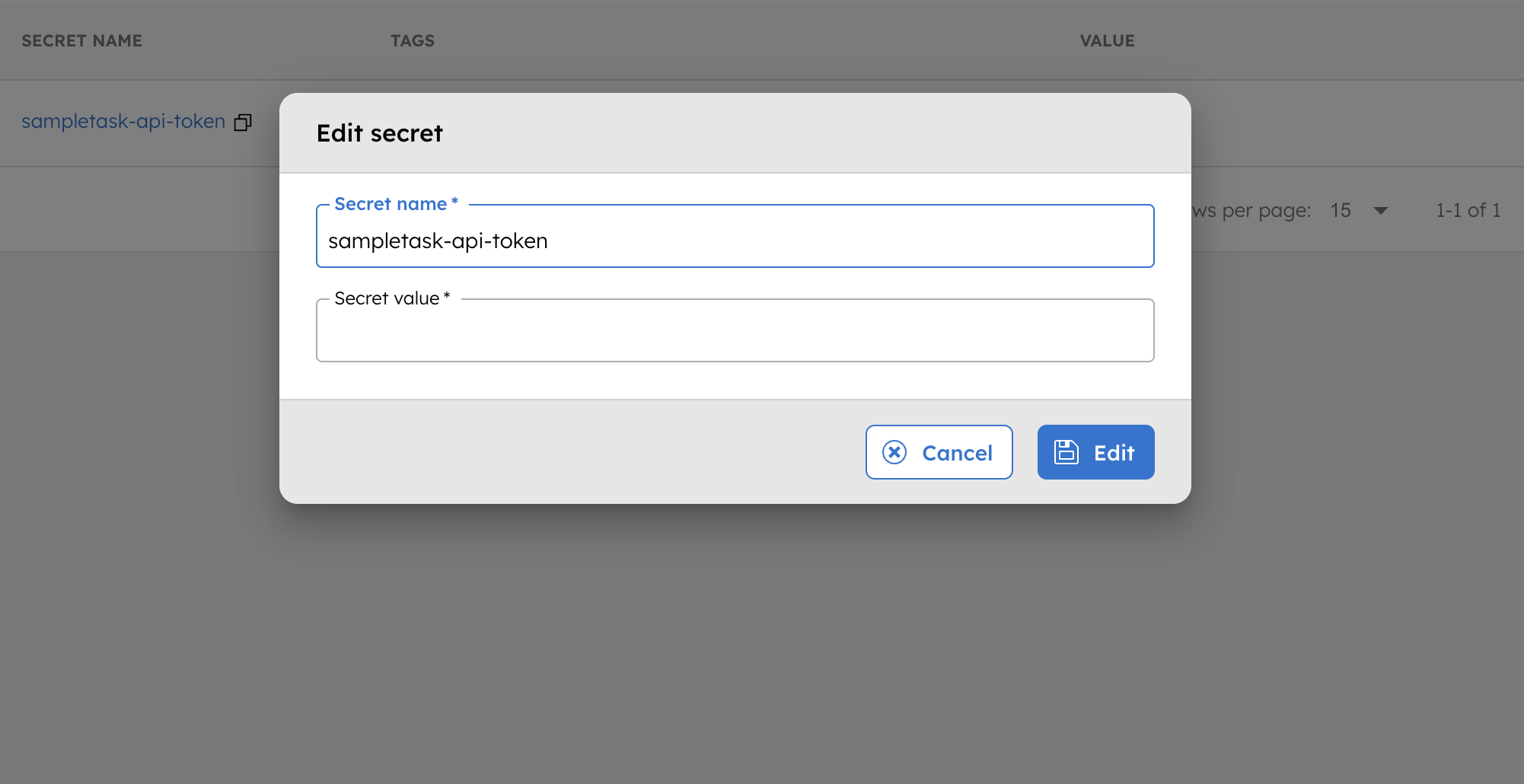
- Go to Definitions > Secrets, and select the secret to update.
- In Secret value, enter the updated value, then select Edit to confirm.
Use the Update Secret task when secrets need to be replaced programmatically within a workflow; for example, when an access token expires and must be rotated automatically.
The task requires the following input structure:
{
  "_secrets": {
    "secretKey": "my-secret-name",
    "secretValue": "${workflow.secrets.new-token-secret}"
  }
}
If _secrets, secretKey, or secretValue are missing or empty, the task terminates the workflow immediately.
Examples
Using a secret in an HTTP task
Suppose you have a secret named sampletask-api-token. Here is an example of how to use this secret in a workflow definition:
// workflow definition
   {
     "name": "sample_task_http",
     "taskReferenceName": "sample_task_http",
     "inputParameters": {
       "http_request": {
         "uri": "https://orkes-api-tester.orkesconductor.com/api",
         "method": "GET",
         "connectionTimeOut": 3000,
         "readTimeOut": 3000,
         "accept": "application/json",
         "contentType": "application/json",
         "headers": {
           "Authorization": "Bearer: ${workflow.secrets.sampletask-api-token}"
         }
       }
     },
     "type": "HTTP"
   }
When this workflow runs, the expression ${workflow.secrets.sampletask-api-token} will be dynamically replaced with the secret value, provided the user running the workflow has READ permission over the secret.
Using a JSON secret with dot notation
Suppose you have a secret named db-credentials with the following JSON value:
{
  "username": "admin",
  "password": "secret123"
}
Reference individual fields in a task input using dot notation:
{
  "name": "db_query_task",
  "taskReferenceName": "db_query_task",
  "inputParameters": {
    "username": "${workflow.secrets.db-credentials.username}",
    "password": "${workflow.secrets.db-credentials.password}",
    "query": "SELECT * FROM orders WHERE status = 'pending'"
  },
  "type": "SIMPLE"
}
Token rotation
Regular rotation is essential for time-sensitive secrets, such as access tokens. Implementing effective token rotation strategies ensures that tokens remain valid and secure. For an end-to-end implementation including scheduling, see Build a Secret Rotation Workflow.