Build a Microsoft Teams Webhook Processing Workflow
You can extend this ticket object to create issues in tools such as Jira, GitHub Issues, Zendesk, or your internal ticketing system. Using Orkes Conductor provides you with full visibility into every step and allows you to plug in additional business logic as your process evolves.
The webhook processing workflow
Here’s an overview of the system we are going to build:
- Create a webhook processing workflow in Conductor.
- Create a webhook in Conductor.
- Configure an outgoing webhook in Microsoft Teams.
- Modify and run the workflow.
Follow the tutorial using the free Orkes Developer Edition. Sign up for an account to get started.
Step 1: Create the webhook processing workflow
Orkes Conductor lets you define workflows as JSON, through SDKs, APIs, or the UI.
In this tutorial, we will create the workflow using Conductor UI.
To create the workflow:
- Go to Definitions > Workflow from the left navigation menu on your Conductor cluster.
- Select + Define workflow.
- Select the Code tab on the right and paste the following code:
{
"name": "ms_teams_message_ticket",
"description": "Creates a simple ticket object from a Microsoft Teams channel message received via webhook.",
"version": 1,
"schemaVersion": 2,
"tasks": [
{
"name": "wait_for_teams_message",
"taskReferenceName": "wait_for_teams_message_ref",
"type": "WAIT_FOR_WEBHOOK",
"inputParameters": {
  "matches": {
    "$['type']": "message"
  }
}
},
{
"name": "build_ticket_payload",
"taskReferenceName": "build_ticket_payload_ref",
"type": "JSON_JQ_TRANSFORM",
"inputParameters": {
"input": "${wait_for_teams_message_ref.output}",
"queryExpression": "{ ticketMessage: (.input.text | gsub(\"<[^>]+>\"; \"\") | gsub(\" \"; \" \") | gsub(\"\\\\s+\"; \" \") | sub(\"^<YOUR-TEAMS-WEBHOOK-NAME>\\\\s*\"; \"\") | gsub(\"^\\\\s+\"; \"\") | gsub(\"\\\\s+$\"; \"\") ), createdAt: .input.timestamp, sender: .input.from.name }"
}
}
],
"outputParameters": {
"ticket": "${build_ticket_payload_ref.output.result}"
}
}
- Select Save > Confirm.
Your workflow will look like this:
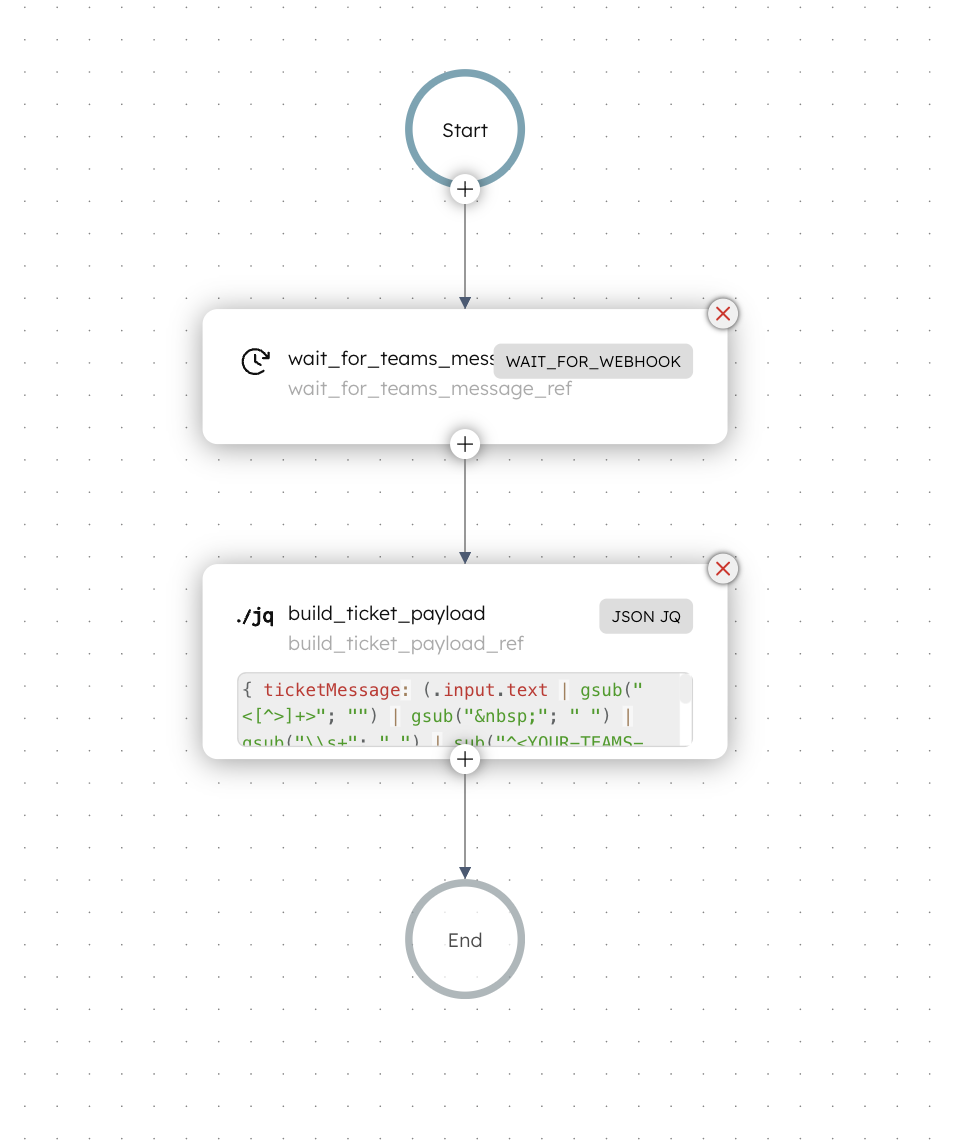
- The workflow begins with a Wait for Webhook task that waits until a Microsoft Teams webhook event arrives in the dedicated channel.
- The JSON JQ Transform task converts the raw message payload into a ticket object that contains the message text, sender name, and timestamp.
Using the Wait for Webhook task
The Wait for Webhook task requires matches to determine which events should trigger the task completion.
A Microsoft Teams outgoing webhook message has a payload similar to the following:
{
"type": "message",
"timestamp": "2025-11-27T06:47:13.5911756+00:00",
"from": {
"name": "John Doe",
"id": "29:1pFjxkLYqXp5vIRx-_uv...",
"aadObjectId": "6ea7..."
},
"text": "<p><at>MyWebhook</at></p>\r\n<p> </p>\r\n<p>hi, this is a test message</p>"
}
To match all message events from Microsoft Teams, the Wait for Webhook task can use the following input:
This ensures that the task completes whenever Microsoft Teams sends a message event to the configured channel, and the workflow is waiting on the Wait for Webhook task.
Step 2: Create a webhook in Conductor
The next step is to create a webhook in Conductor that receives events from Microsoft Teams and forwards them to the workflow.
To create a webhook:
- Go to Definitions > Webhook from the left navigation menu on your Conductor cluster.
- Select + New webhook.
- Configure the following parameters:
- In Webhook name, enter a unique name for the webhook.
- In Workflows to receive Webhook event, select the workflow created in Step 1.
- Select the Source platform as Microsoft Teams.
- Leave the Security token field for now. We will add that later.
- Select Save.
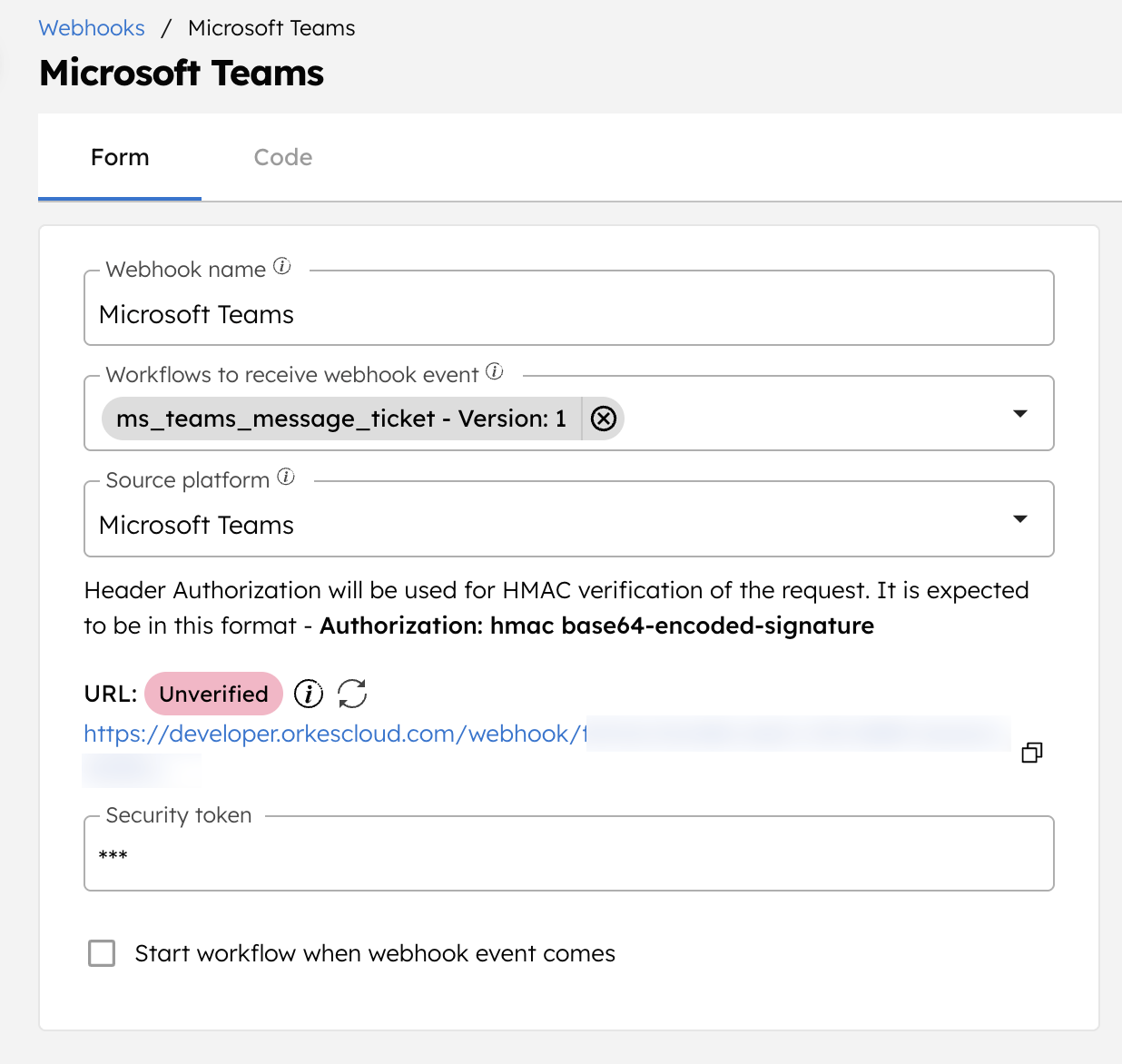
An unverified webhook URL will be generated, which you will copy to the Microsoft Teams webhook later.
Step 3: Configure an outgoing webhook in Microsoft Teams
Now configure an outgoing webhook in Microsoft Teams and point it to the Conductor webhook URL.
- Create an outgoing webhook in your required Microsoft Teams channel.
- Ensure that you enter the Conductor webhook URL in the Callback URL field.
- Note the webhook name, as it will be needed for posting messages later.
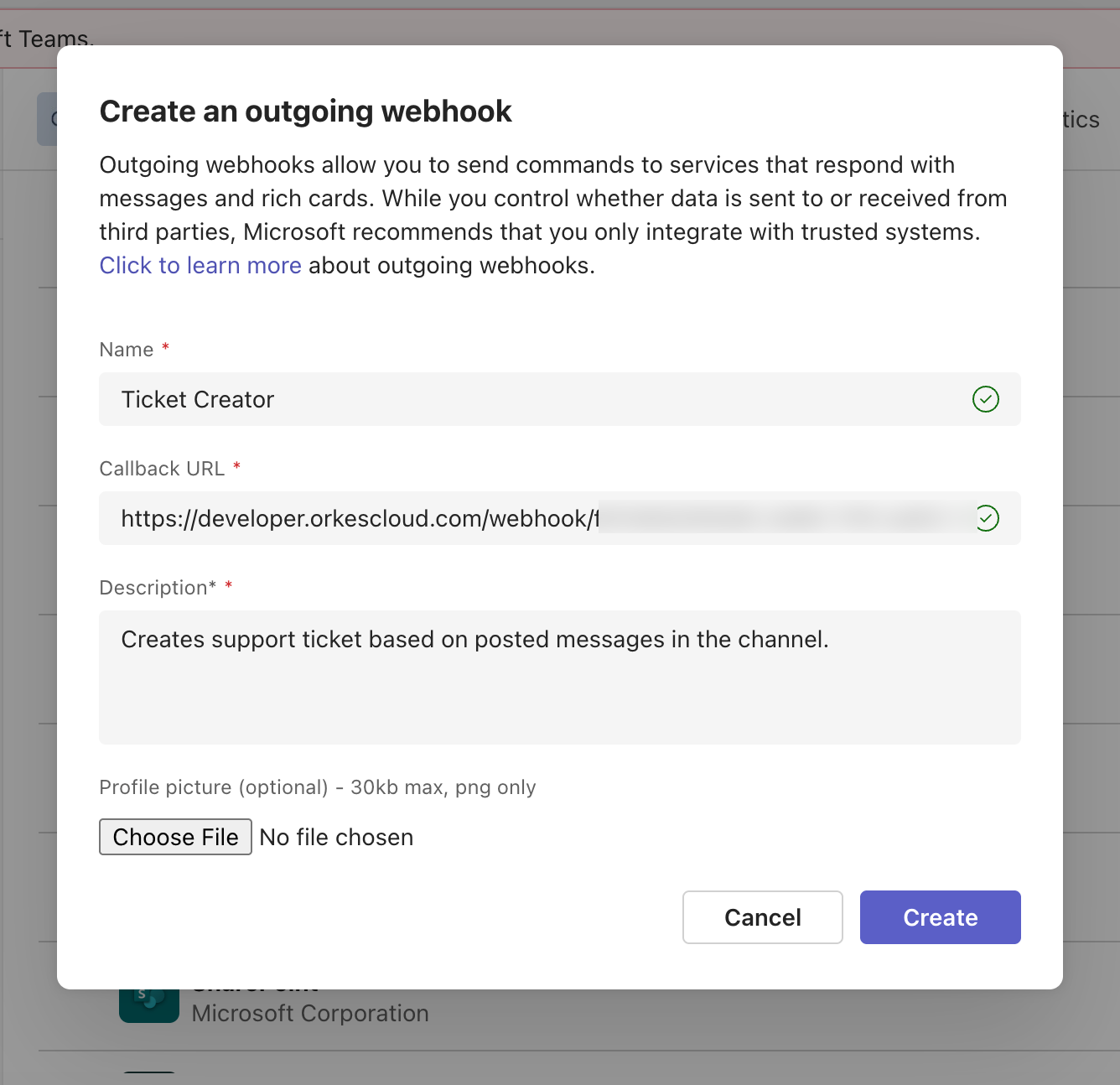
This saves the webhook. Microsoft Teams webhook generates a Security token. Copy this and add it to the Conductor webhook configuration, as a Security token.
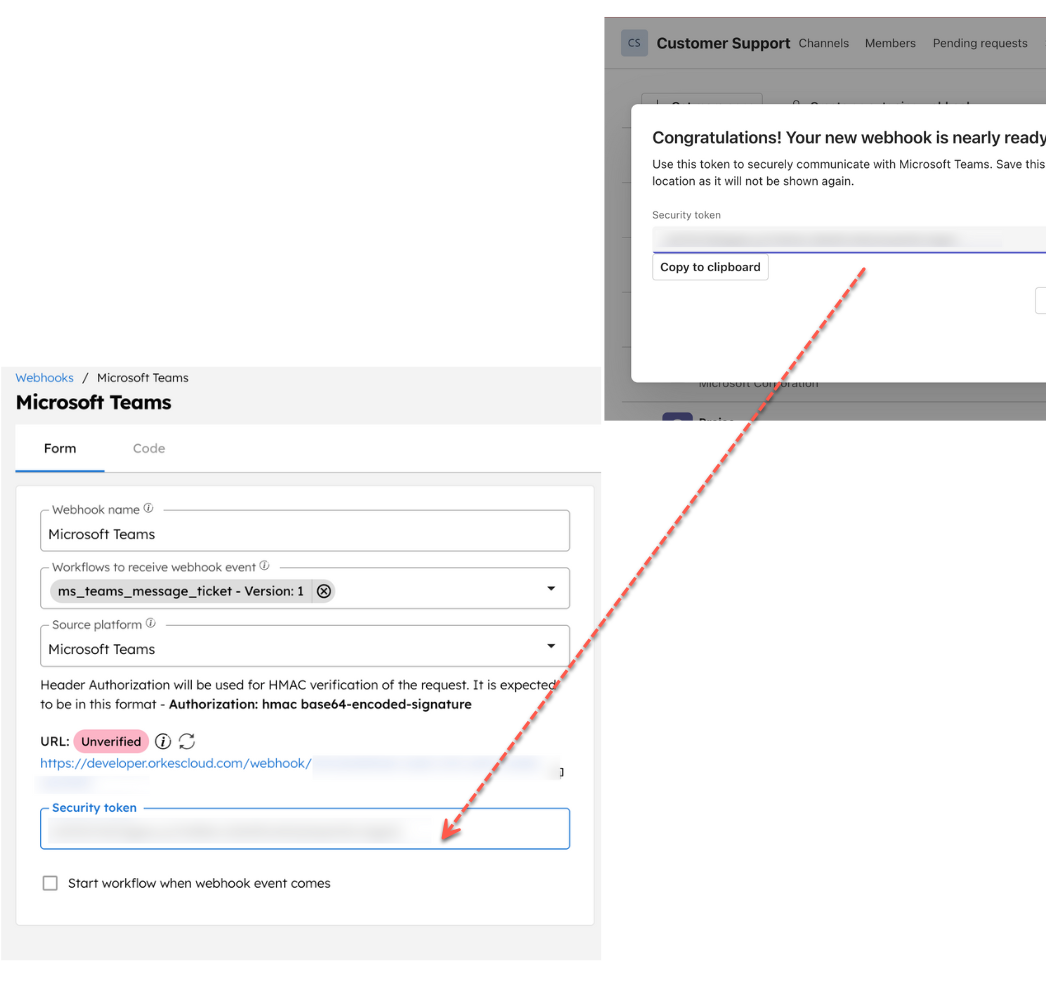
Next, we must send a sample event to verify the webhook in Conductor.
Go to your Microsoft Teams channel where the webhook is added and post the test message in the format:
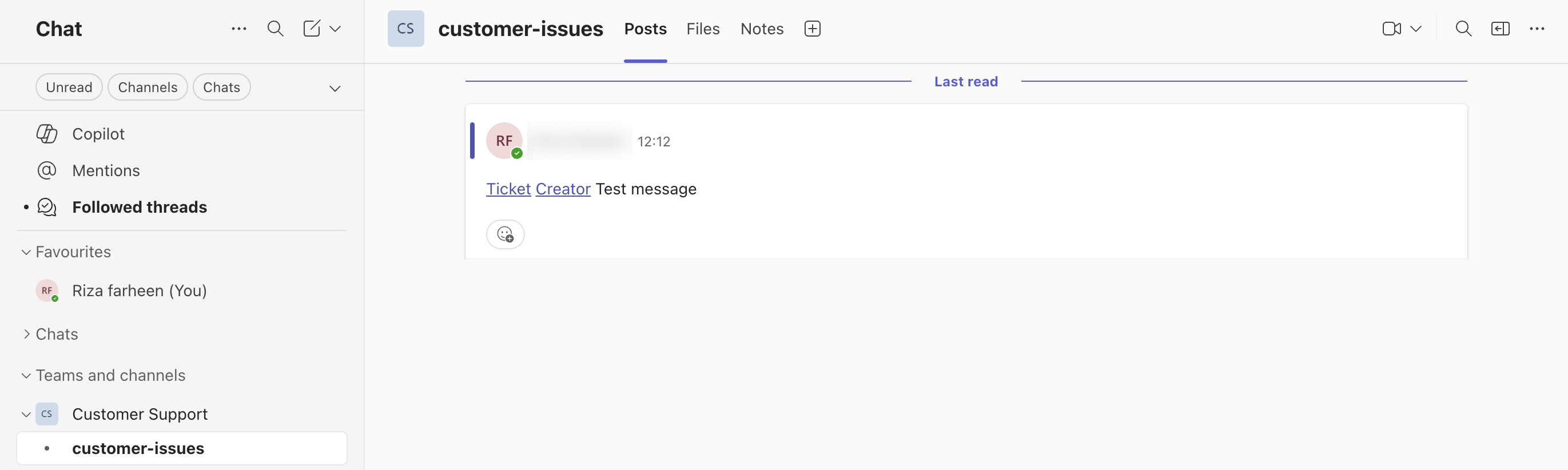
This sends a sample event to your Conductor webhook and verifies it.
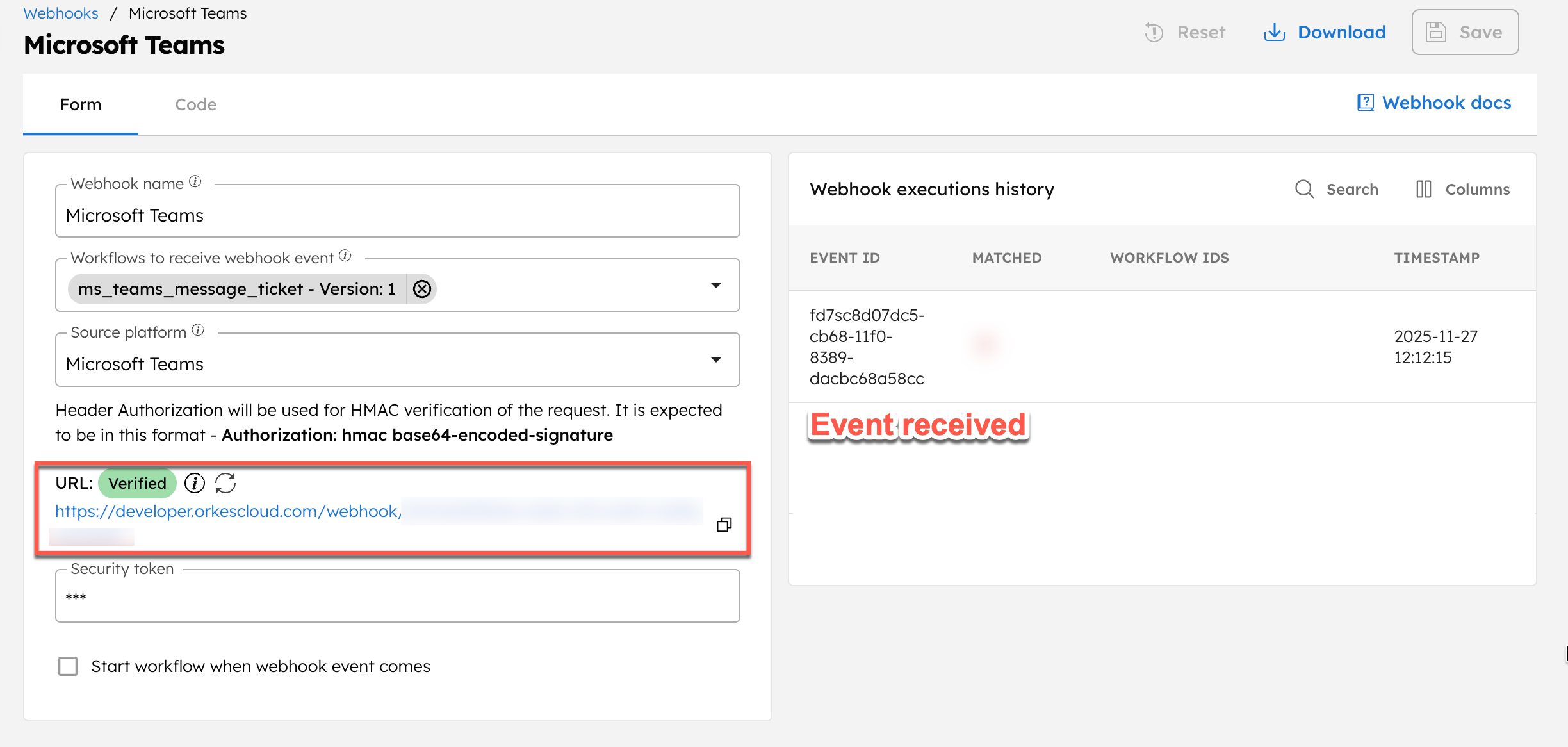
Step 4: Modify and run the workflow
Before running the workflow, update the JSON JQ Transform task to escape the webhook name from the ticket creation process.
In the JQ expression, replace <YOUR-TEAMS-WEBHOOK-NAME> with your Microsoft Teams webhook name and save the workflow.
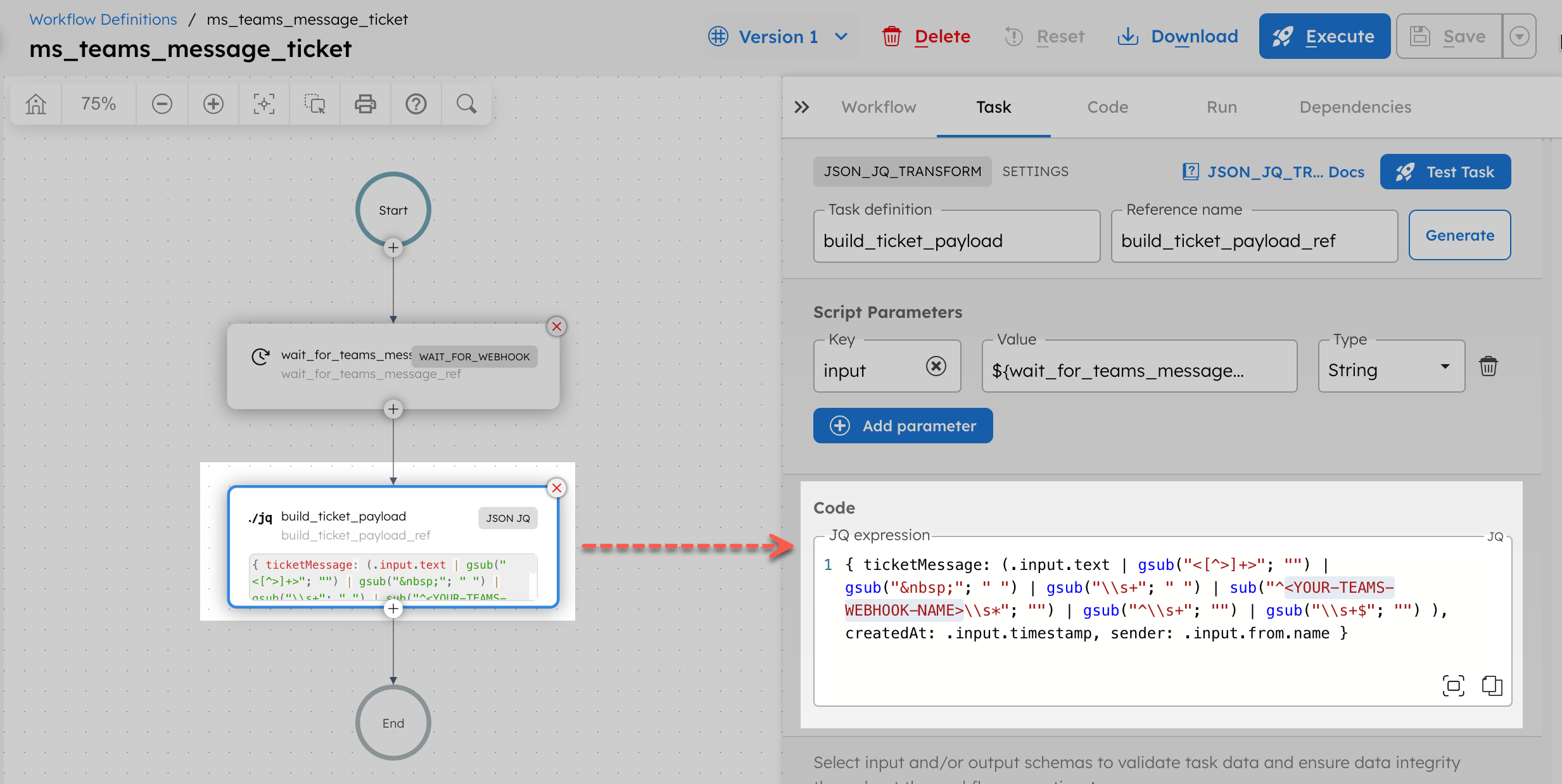
Once done, go to the Run tab and select Execute to start the execution. It will now run and wait for incoming events from the Microsoft Teams webhook.
Now test from Teams:
- In the channel where you added the outgoing webhook, enter:
@YourWebhookName Customer reports payment failure on order 1234
- Send the message.
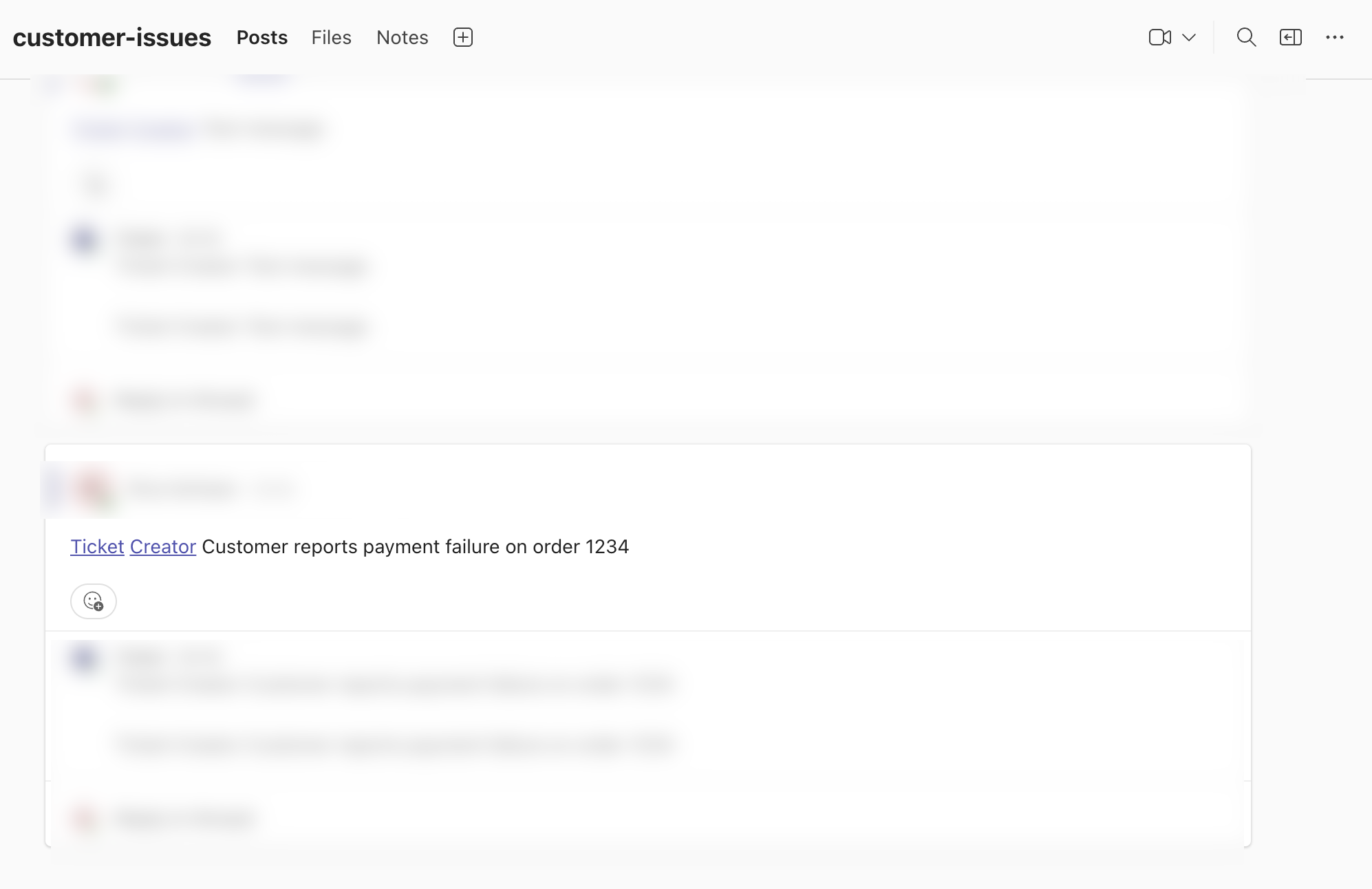
This sends the event to the Conductor webhook, allowing the Wait for Webhook task to complete successfully.
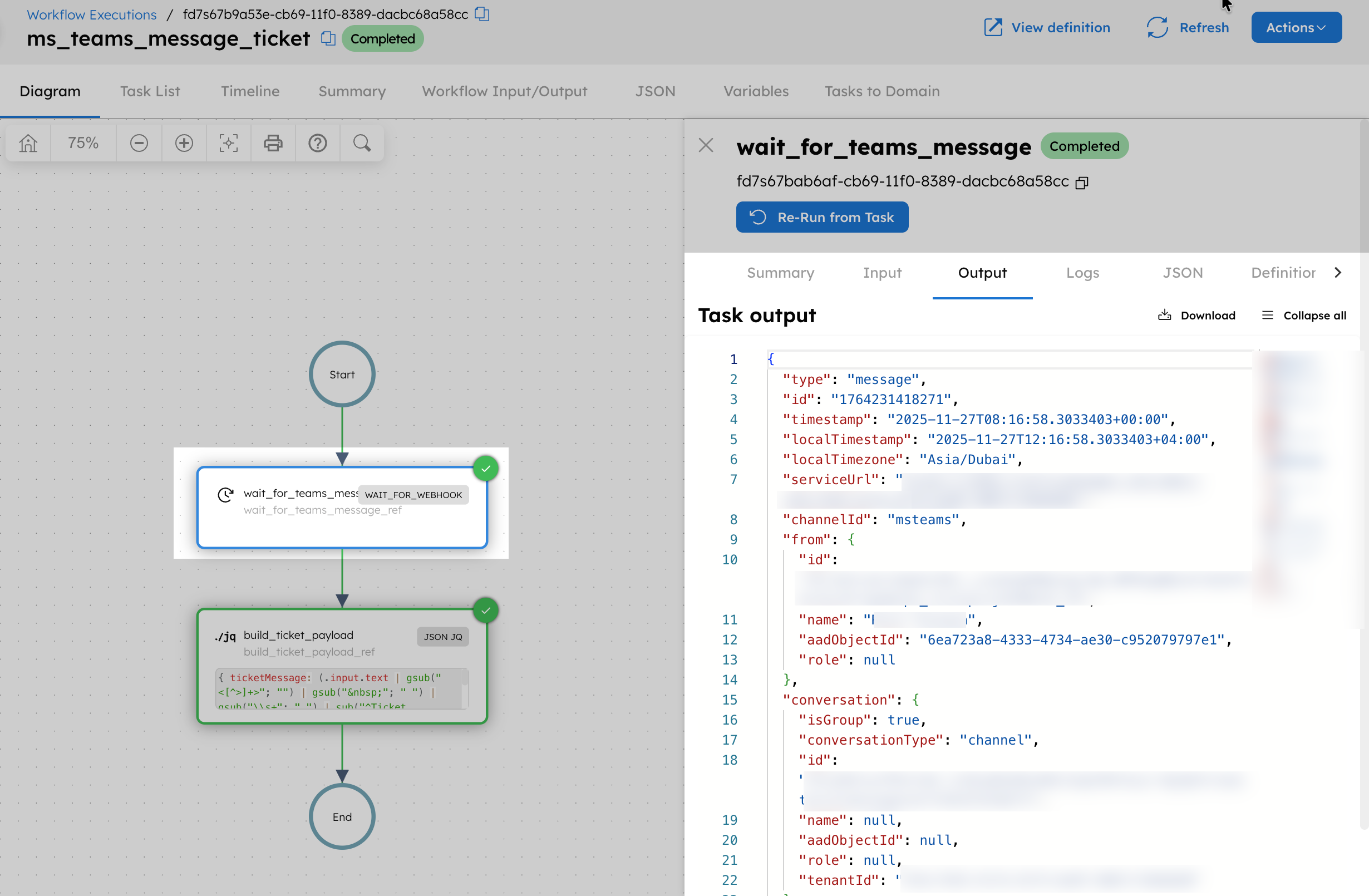
Go to Executions > Workflow to review the execution and check the Wait for Webhook task’s output to verify that the message was received and processed correctly.
Scroll to the Workflow Output section to view the final ticket object created.
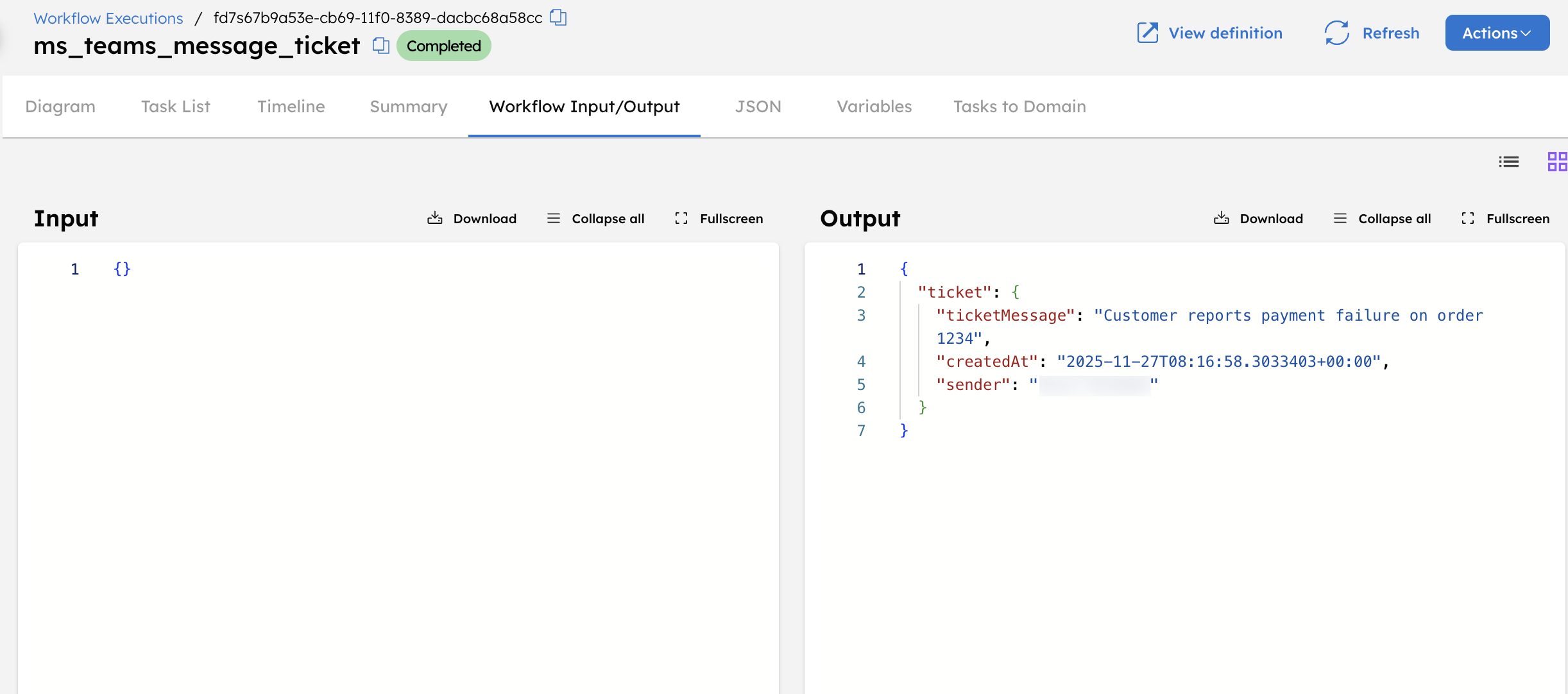
The output contains:
- ticketMessage: Cleaned message text extracted from the webhook payload
- sender: Display name of the person who sent the message
- createdAt: Timestamp from the Teams event
After validating the workflow, integrate it with your preferred ticketing system, whether internal or external, by adding an HTTP task or custom worker to automatically create tickets. This ensures every Microsoft Teams message triggers a fully automated ticket creation flow in your production environment.
Workflow modifications
This workflow can be extended by:
- Adding conditional logic to route messages based on keywords, severity, or channel context
- Sending follow-up notifications through email, Teams, or any messaging provider
- Logging all incoming events to a database or analytics system for audit and reporting
- Adding error-handling steps to retry failed calls or escalate issues to another workflow