Build a GitHub Pull Request Reviewer Assignment Workflow
While GitHub Marketplace offers handy plugins, such as auto-assign reviewer by files, they come with limitations: rigid logic, minimal observability, and a lack of ownership. Owning your automation with an orchestration platform like Orkes Conductor means you’re in control: you write the logic, observe every task, and extend workflows to any system your team uses, from Slack to Jira to custom APIs.
The PR reviewer assignment workflow
To illustrate how pull request automation works, let’s consider a repository that receives a high volume of contributions. We’ll automate this flow using GitHub webhooks and Orkes Conductor.
Here’s an overview of the system we are going to build:
- Create a PR reviewer assignment workflow in Conductor.
- Get an access token from the GitHub account.
- Store the GitHub token as a secret in Conductor.
- Create a webhook in Conductor.
- Configure a webhook in GitHub.
- Modify the workflow.
- Submit a PR in the GitHub repository.
Follow the tutorial using the free Orkes Developer Edition. Sign up for an account to get started.
Step 1: Create a PR reviewer assignment workflow
Orkes Conductor lets you define workflows as JSON, through SDKs, APIs, or the UI.
In this tutorial, we will create the workflow using Conductor UI.
To create the workflow:
- Go to Definitions > Workflow from the left navigation menu on your Conductor cluster.
- Select + Define workflow.
- Select the Code tab on the right and paste the following code:
{
  "name": "github_pr_reviewer_assignment",
  "description": "Assign reviewers when a PR is opened",
  "version": 1,
  "tasks": [
    {
      "name": "check_pr_action",
      "taskReferenceName": "checkAction",
      "type": "SWITCH",
      "evaluatorType": "value-param",
      "expression": "action",
      "inputParameters": {
        "action": "${workflow.input.action}"
      },
      "decisionCases": {
        "opened": [
          {
            "name": "assign_reviewers",
            "taskReferenceName": "assignReviewers",
            "inputParameters": {
              "http_request": {
                "method": "POST",
                "uri": "${workflow.input.pull_request.url}/requested_reviewers",
                "headers": {
                  "Authorization": "token ${workflow.secrets.ghp_your_github_token}",
                  "Accept": "application/vnd.github.v3+json"
                },
                "body": {
                  "reviewers": ["<GITHUB-ID>"]
                }
              }
            },
            "type": "HTTP"
          }
        ]
      },
      "defaultCase": [
        {
          "name": "terminate_non_opened",
          "taskReferenceName": "terminateNonOpened",
          "type": "TERMINATE",
          "inputParameters": {
            "terminationStatus": "COMPLETED",
            "reason": "Ignoring non-opened PR event: ${workflow.input.action}"
          }
        }
      ]
    }
  ],
  "schemaVersion": 2
}
- Select Save > Confirm.
Your workflow will look like this:
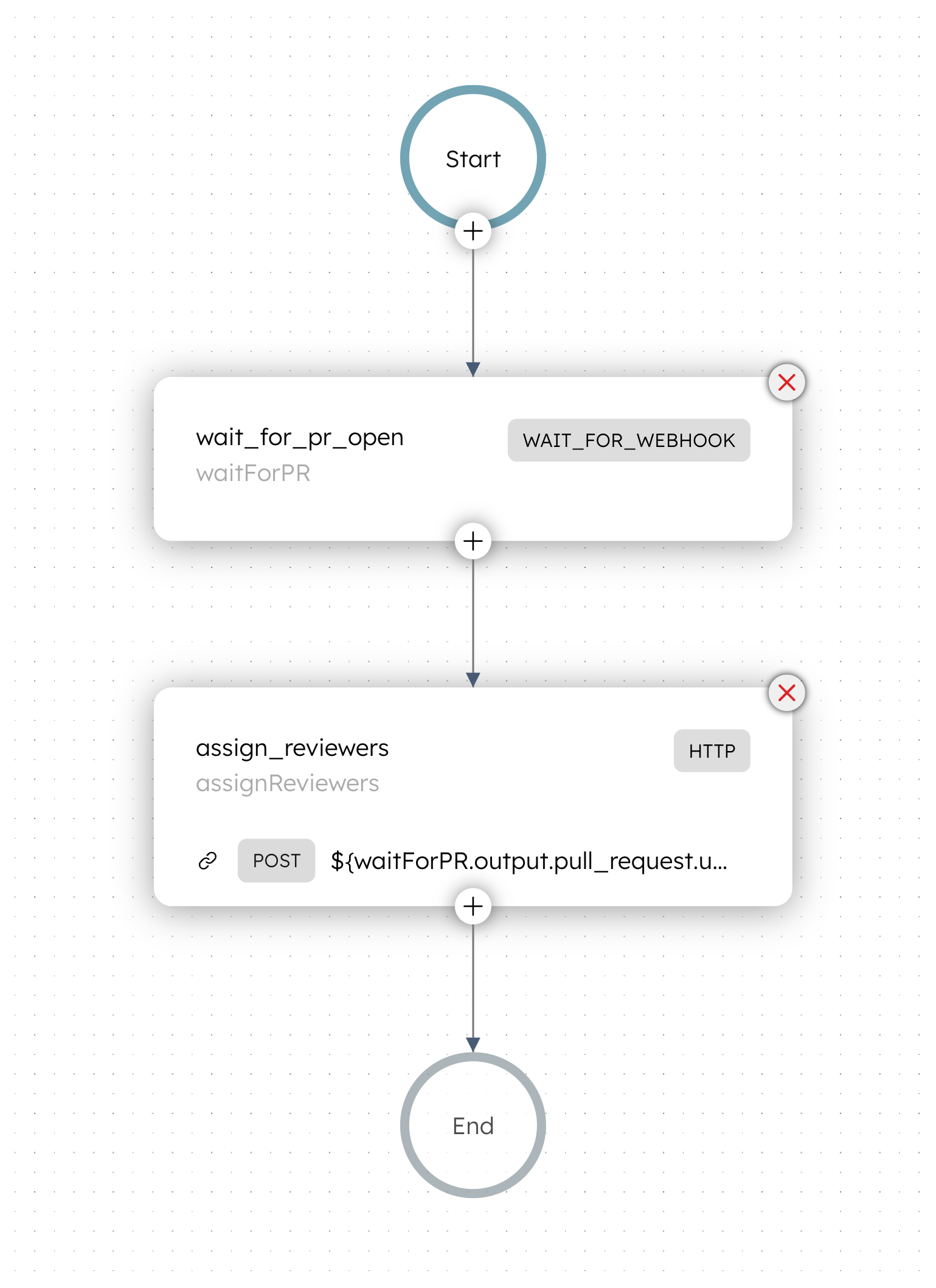
The workflow uses a Switch task to evaluate the incoming event's action field. If the action is opened, it sends a POST request to the GitHub API to assign a reviewer. For all other actions, it terminates cleanly without processing. Unlike a long-running workflow that waits for events, each PR event starts a fresh execution, giving you a clean execution record per PR and better observability.
Step 2: Get an access token from the GitHub account
GitHub’s personal access token is used to authenticate the GitHub API request via the HTTP task.
To get the token:
- Log in to GitHub.
- Select your profile in the upper-right corner and then select Settings.
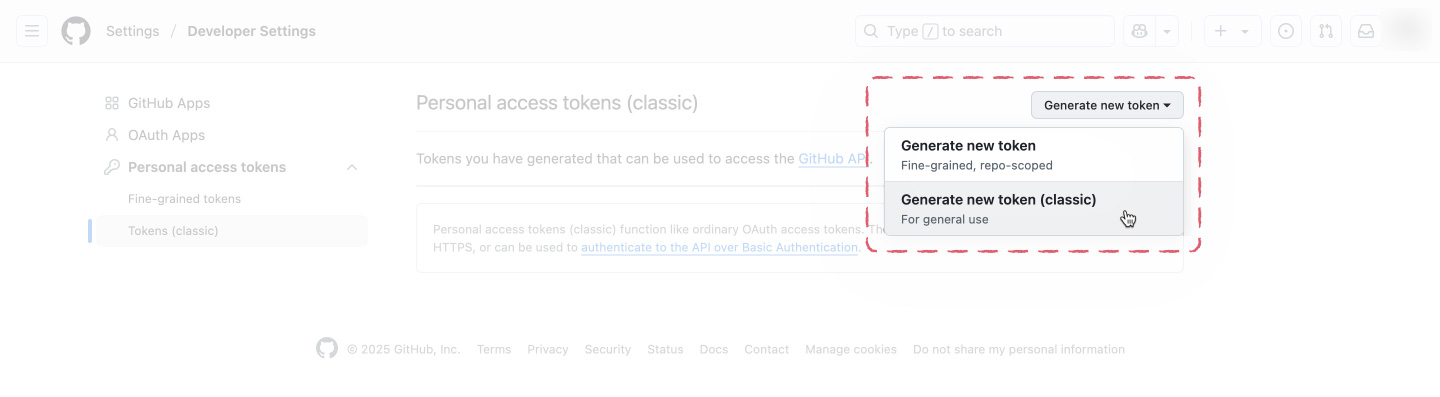
- Select Developer settings > Personal access tokens > Tokens (classic) from the left menu.
- Select Generate new token > Generate new token (classic).
- Enter a Note for the token, which is a name used to identify the token.
- Set a token Expiration.
- In Select scopes, select repo.
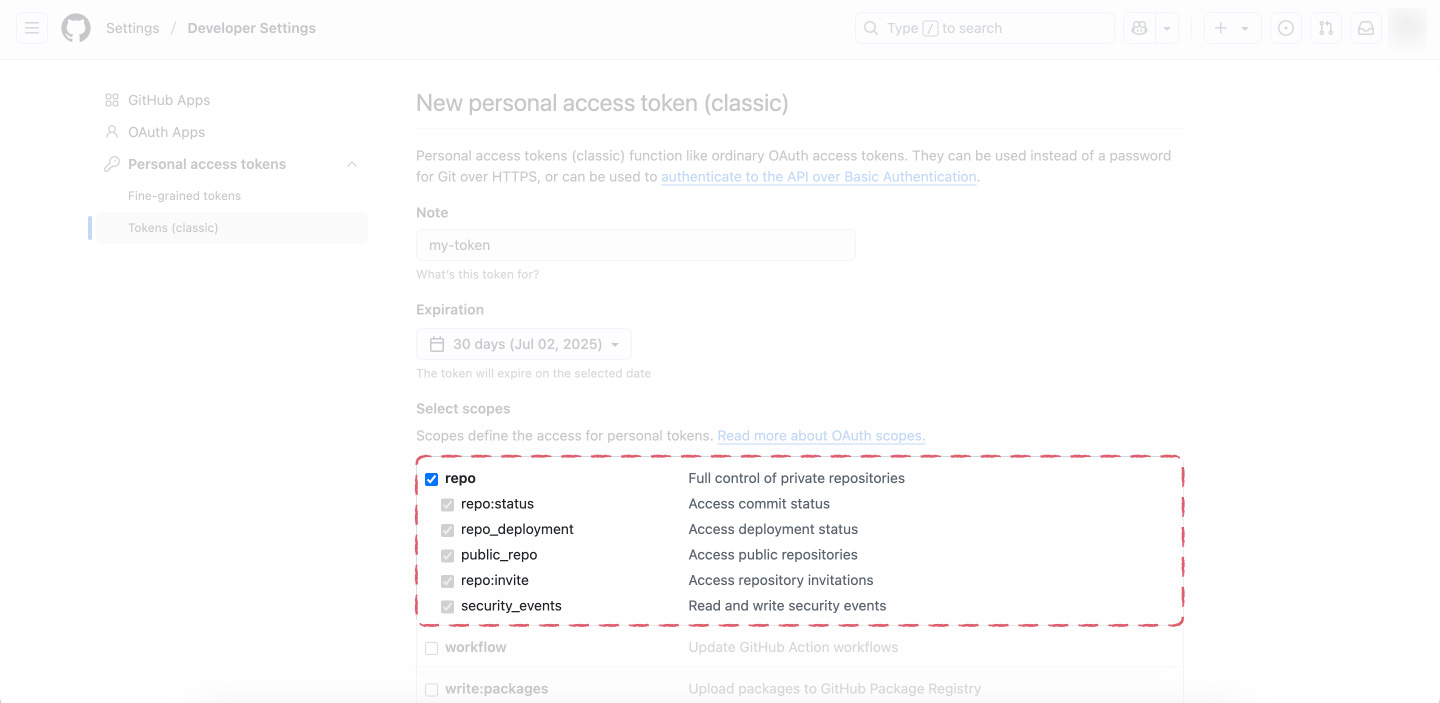
- Select Generate token.
- Copy and store the token securely, as it will only be displayed once.
Now that you have the token, the next step is to store it as a secret in Conductor.
Step 3: Store the GitHub token as a secret in Conductor
To create a secret:
- Go to Definitions > Secret from the left navigation menu on your Conductor cluster.
- Select + Add secret.
- In Secret name, enter ghp_your_github_token.
- In Secret value, paste the GitHub token copied previously.
- Select Add.
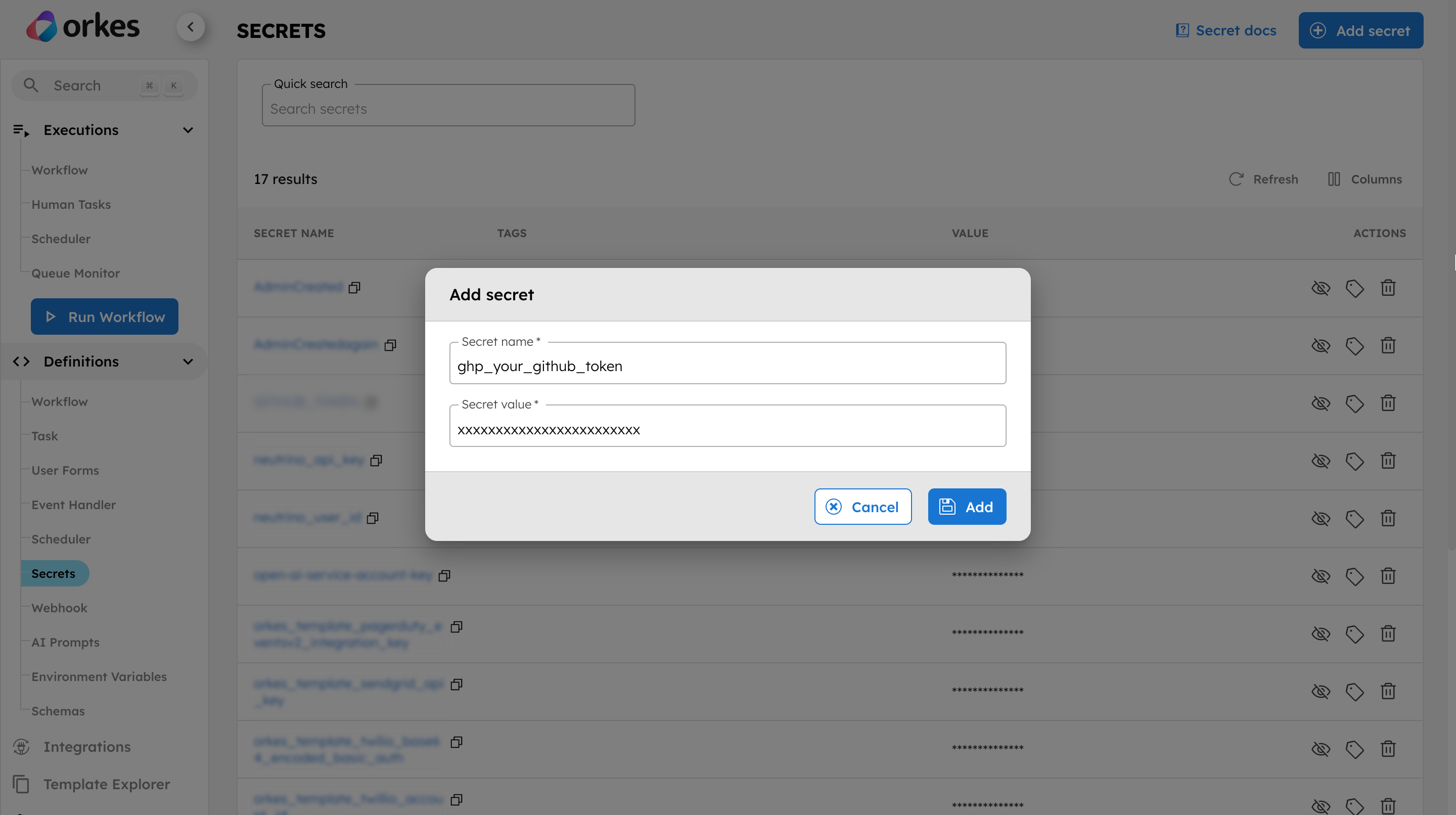
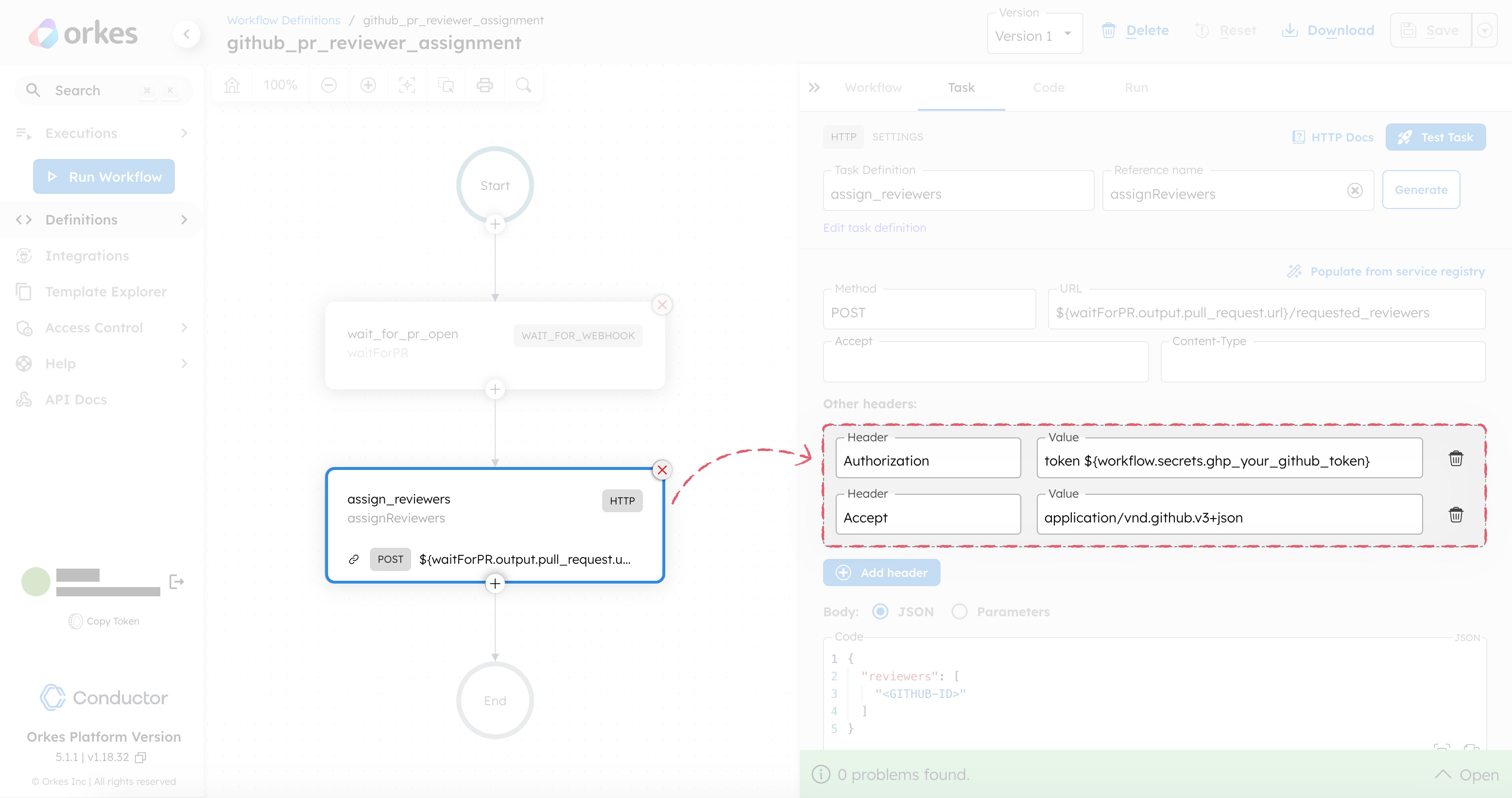
Your token is now securely stored with Conductor. Returning to your workflow, you can verify that this secret authorizes the GitHub request within the HTTP task.
Step 4: Create a webhook in Conductor
Next, create a webhook in Conductor to receive events from GitHub and trigger your workflow on each incoming PR event.
To create a webhook:
- Go to Definitions > Webhook from the left navigation menu on your Conductor cluster.
- Select + New webhook.
- Configure the following parameters:
- In Webhook name, enter a unique name for the webhook.
- Select the Source platform as GitHub.
- In Secret, enter a random secret key, which will be used to authenticate the webhook connection in GitHub. Make sure to note this value.
- Enable Start workflow when webhook event comes.
- In Workflow name, select the workflow created in Step 1.
- In Version, select Version 1.
- Select Save.
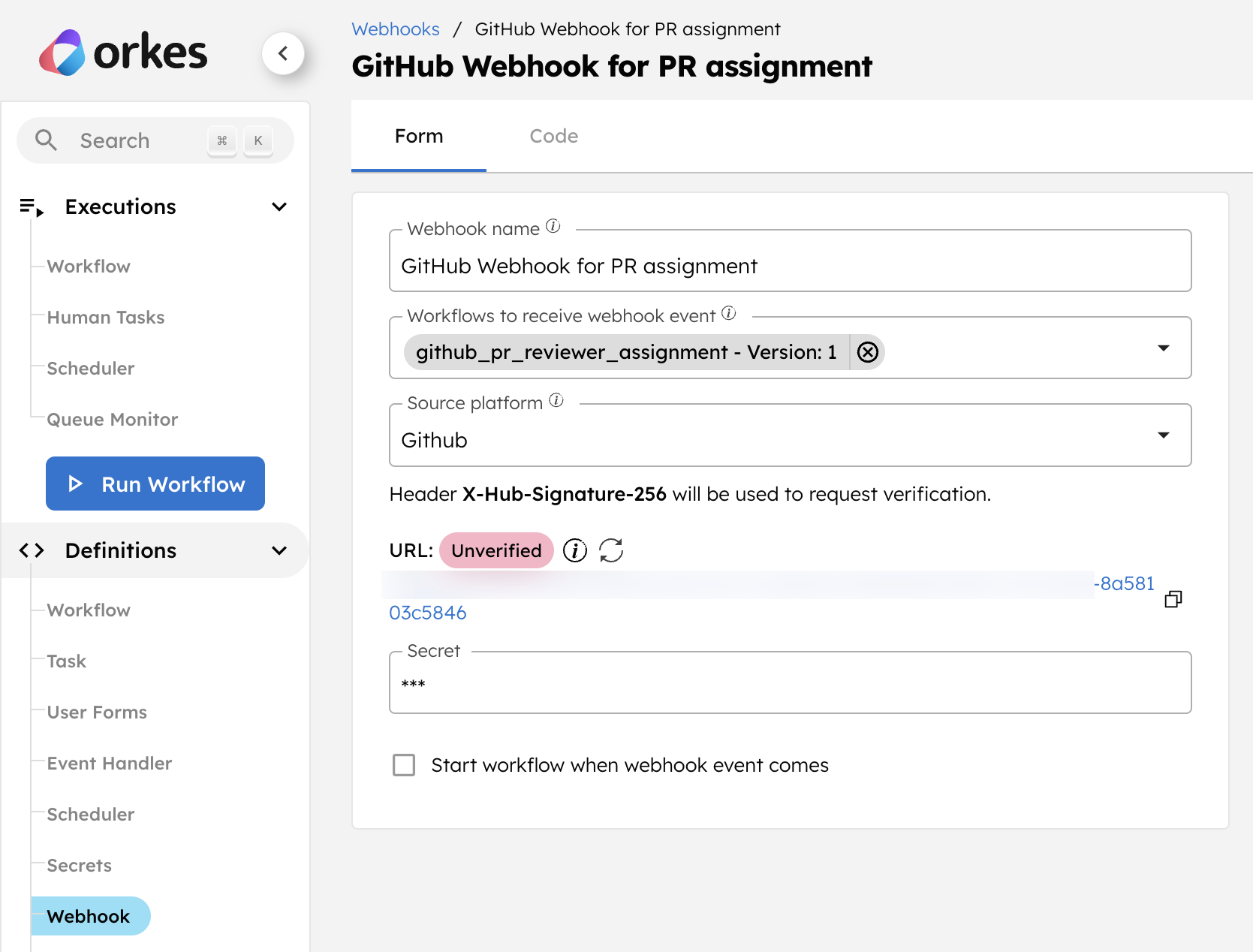
An unverified webhook URL will be generated, which you will copy to the GitHub webhook.
Step 5: Configure a webhook in GitHub
Prerequisites
You must have a GitHub repository where PR assignment automation will be applied.
You now need to configure a GitHub webhook to send events to your Conductor webhook. Create this webhook in the same repository where you want to automate PR reviewer assignment.
To create a webhook in GitHub:
- Go to Settings from your GitHub repository.
- Go to Code and automation > Webhooks from the left menu.
- Select Add webhook.
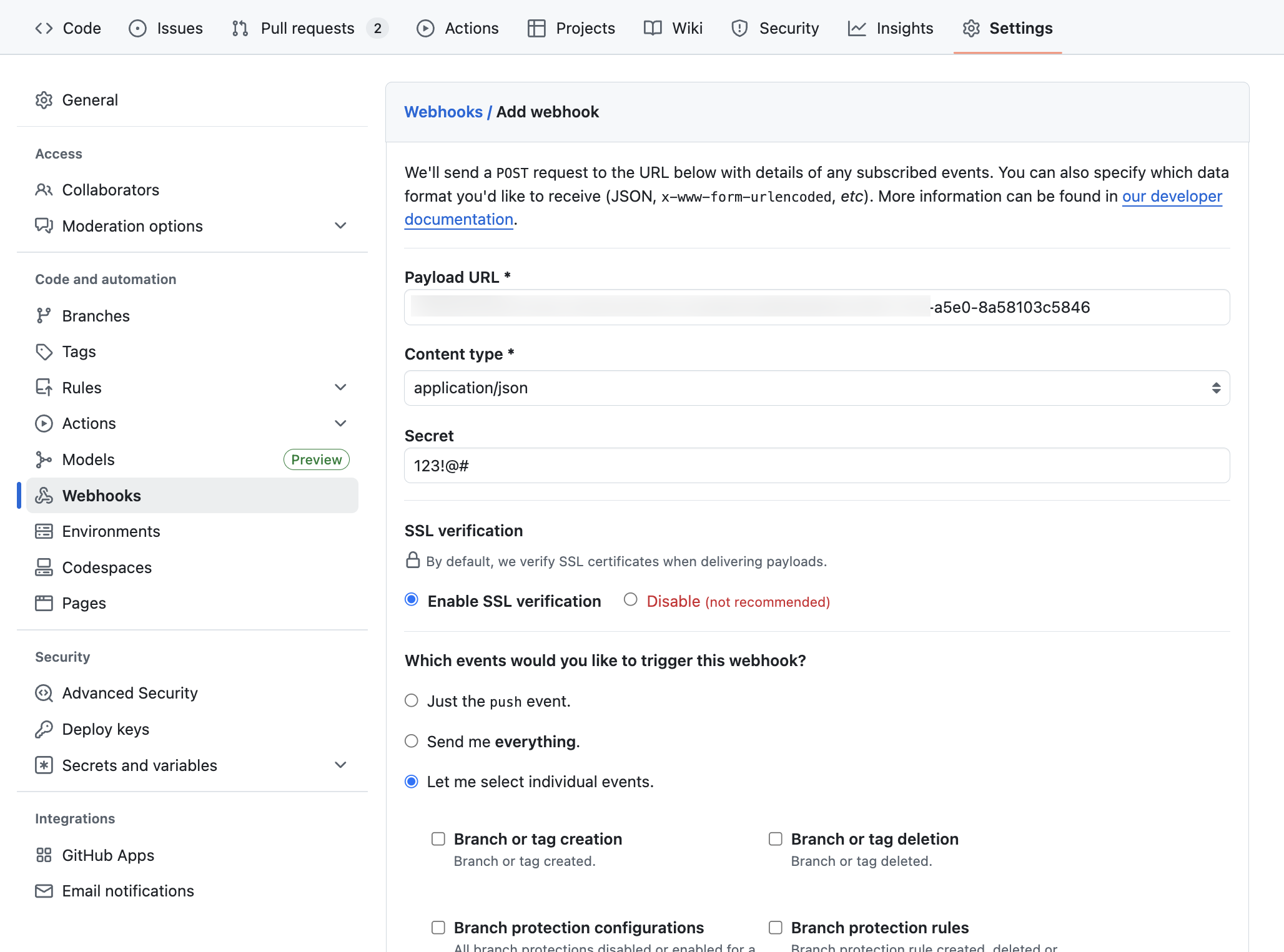
- In Payload URL, paste the webhook URL generated in Step 4.
- Set the Content type as application/json.
- In Secret, enter the secret value configured for the Conductor webhook in Step 4.
- In SSL verification, switch on Enable SSL verification.
- In Which events would you like to trigger this webhook, select Let me select individual events > Pull requests.
- Select Add webhook.
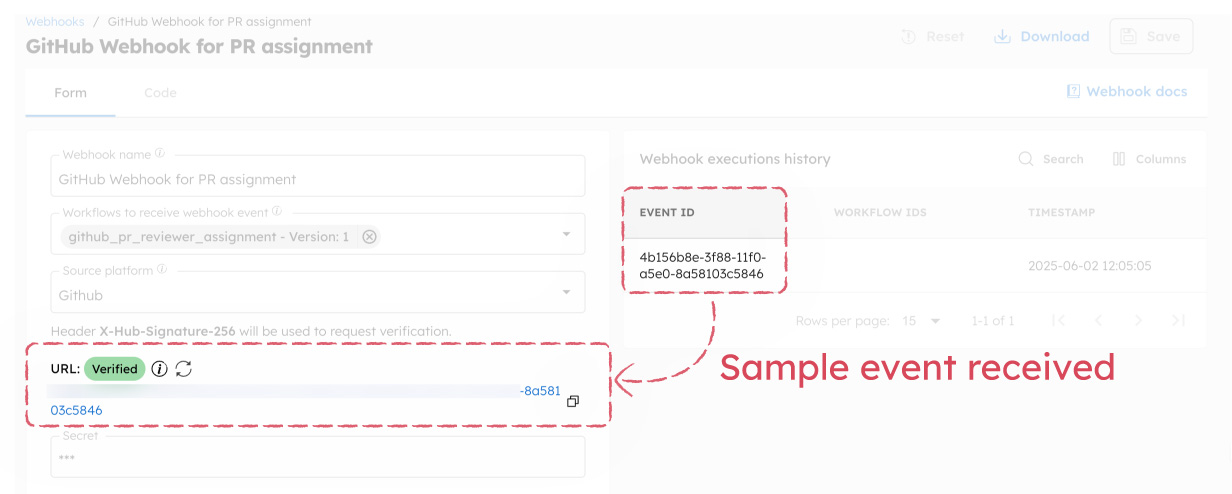
This saves the webhook and sends a sample event to Conductor, which verifies the webhook URL in Conductor.
Step 6: Modify the workflow
Before the workflow can assign reviewers, update it with the GitHub username of the reviewer you want to assign pull requests to. This user must have write access to the repository.
To modify the workflow, go back to your workflow definition and select the HTTP task. Replace <GITHUB-ID> with the actual GitHub username of the intended reviewer.
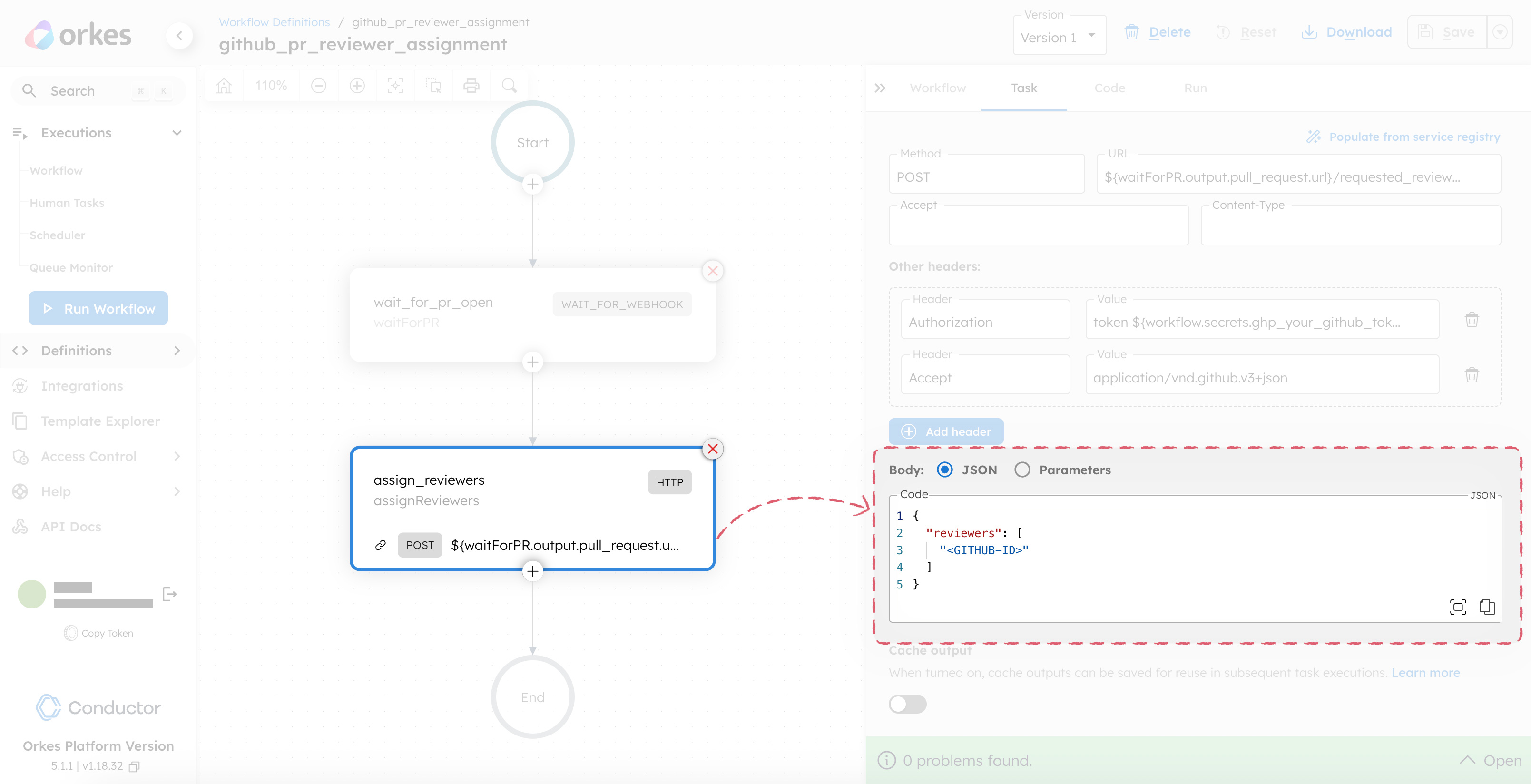
Save the workflow. Now, the workflow will automatically start a new execution each time GitHub sends a PR event to your Conductor webhook.
Step 7: Submit a PR in the GitHub repository
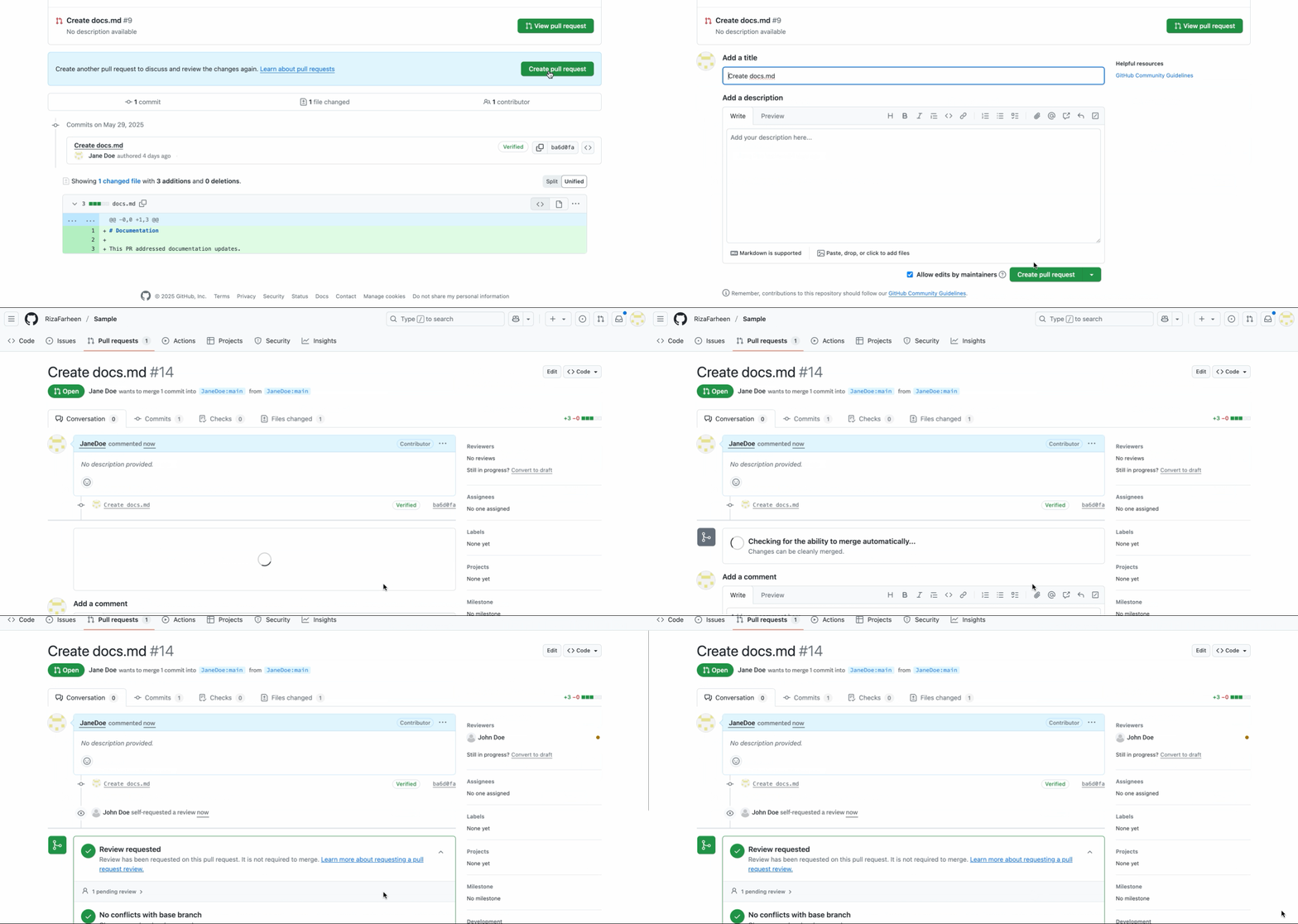
To test the setup, have another user open a sample pull request in your GitHub repository.
This triggers the GitHub webhook, which sends the PR event to Conductor and starts a new workflow execution. The Switch task evaluates the event and, since the action is opened, the HTTP task assigns the pull request to the specified reviewer.
Note
The PR may appear as a self-requested review if the reviewer is the same GitHub user who owns the repository and created the webhook.
To confirm everything is working as expected, head to Executions > Workflow in your Conductor cluster and select your workflow. In the HTTP task, review the workflow execution details, including the event payload.
You have now automated the PR assignment process.
Up next, let’s take it a step further by enhancing the workflow to assign reviewers dynamically based on the type of changes introduced in the pull request.
Dynamically assign reviewers based on the files changed
The basic version of our workflow assigns the same reviewer for every pull request. However, real-world projects are more nuanced: some PRs update code, while others update documentation.
To make the process smarter, we can dynamically assign reviewers based on the type of changes in the PR.
In this scenario, let’s assume:
- All documentation updates are made using markdown files (.md).
- Code changes affect other file types, such as .js, .py, etc.
To implement this logic, we’ll use Conductor’s versioning capability. Versioning enables you to maintain multiple versions of the same workflow, allowing for easy iteration without impacting existing executions.
Go to your workflow definition and switch to the Code tab. Replace the existing definition with the following:
{
  "name": "github_pr_reviewer_assignment",
  "description": "Assign reviewers when a PR is opened",
  "version": 2,
  "tasks": [
    {
      "name": "check_pr_action",
      "taskReferenceName": "checkAction",
      "type": "SWITCH",
      "evaluatorType": "value-param",
      "expression": "action",
      "inputParameters": {
        "action": "${workflow.input.action}"
      },
      "decisionCases": {
        "opened": [
          {
            "name": "fetch_files_changed",
            "taskReferenceName": "fetchChanged",
            "inputParameters": {
              "http_request": {
                "method": "GET",
                "uri": "${workflow.input.pull_request.url}/files",
                "headers": {
                  "Authorization": "token ${workflow.secrets.ghp_your_github_token}",
                  "Accept": "application/vnd.github.v3+json"
                }
              }
            },
            "type": "HTTP"
          },
          {
            "name": "determine_reviewers",
            "taskReferenceName": "determineReviewers",
            "inputParameters": {
              "source": "${fetchChanged.output.response.body}",
              "queryExpression": "if any(.source[]; .filename | test(\".*\\\\.md$\")) then [\"<DOC-REVIEWER>\"] else [\"<CODE-REVIEWER>\"] end"
            },
            "type": "JSON_JQ_TRANSFORM"
          },
          {
            "name": "assign_reviewers",
            "taskReferenceName": "assignReviewers",
            "inputParameters": {
              "http_request": {
                "method": "POST",
                "uri": "${workflow.input.pull_request.url}/requested_reviewers",
                "headers": {
                  "Authorization": "token ${workflow.secrets.ghp_your_github_token}",
                  "Accept": "application/vnd.github.v3+json"
                },
                "body": {
                  "reviewers": "${determineReviewers.output.resultList[0]}"
                }
              }
            },
            "type": "HTTP"
          }
        ]
      },
      "defaultCase": [
        {
          "name": "terminate_non_opened",
          "taskReferenceName": "terminateNonOpened",
          "type": "TERMINATE",
          "inputParameters": {
            "terminationStatus": "COMPLETED",
            "reason": "Ignoring non-opened PR event: ${workflow.input.action}"
          }
        }
      ]
    }
  ],
  "schemaVersion": 2
}
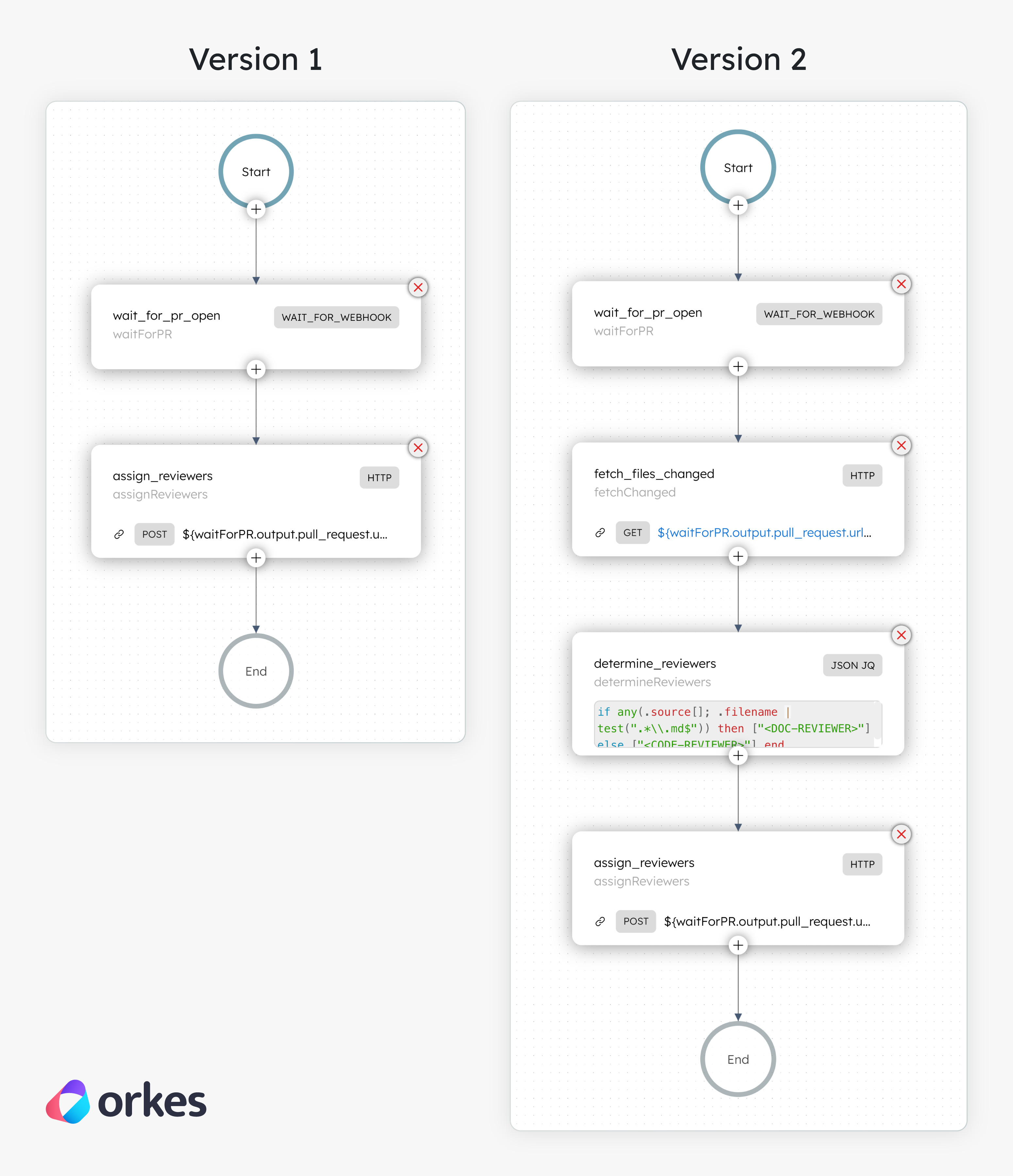
Save the workflow. This saves the workflow as a new version, i.e., version 2. It introduces two enhancements inside the opened case:
- An additional HTTP task to fetch the list of files changed in the pull request using the GitHub API.
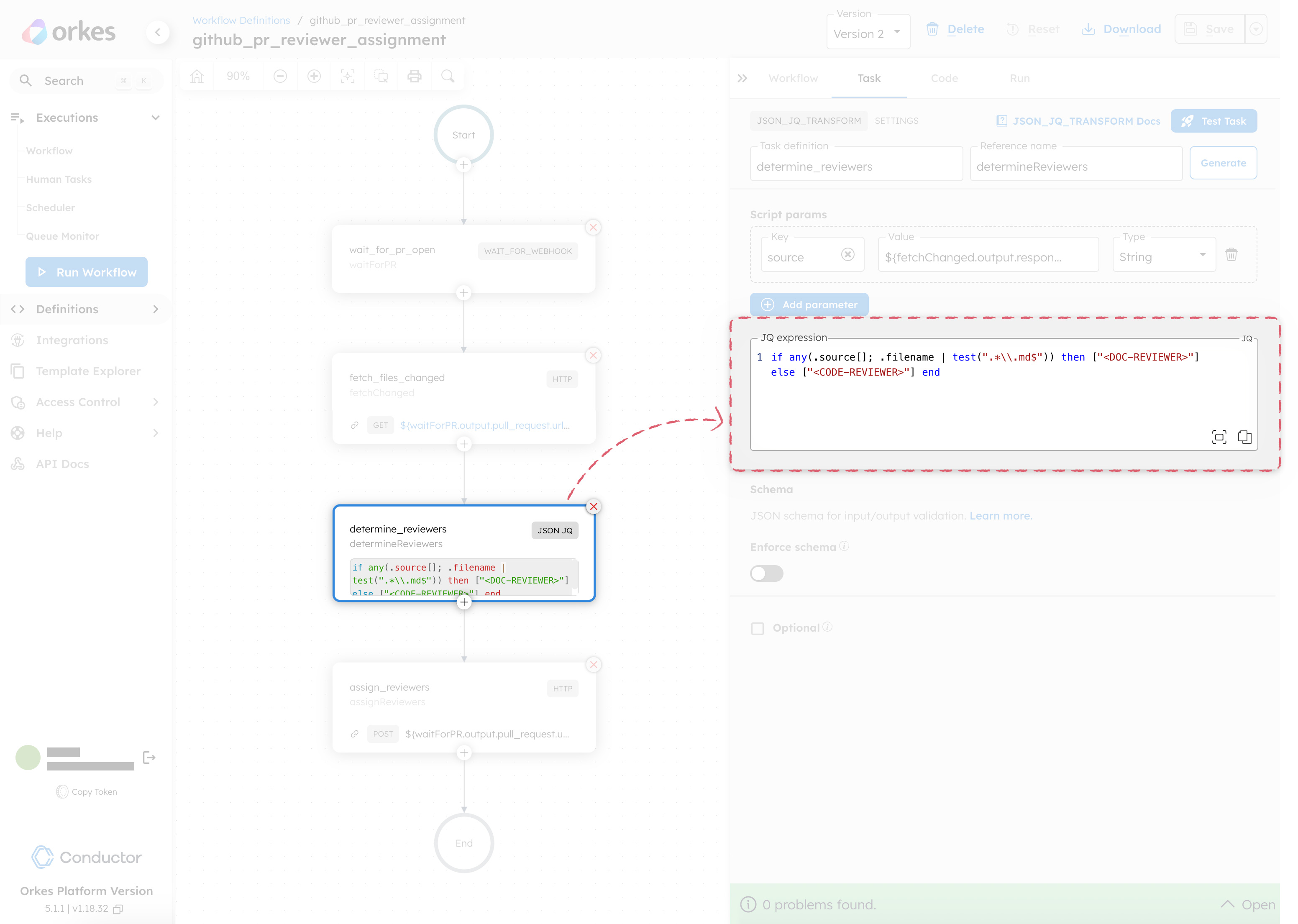
- A JSON JQ Transform task to analyze those files and determine the appropriate reviewer based on the file type. It checks if any of the changed files end with
.md. If yes, the workflow assigns the PR to a documentation reviewer. Otherwise, it assigns a code reviewer.
Before testing:
- In the JSON JQ Transform task, update the placeholders with the actual GitHub usernames of your doc and code reviewers. Ensure these users are added as collaborators on the GitHub repository.
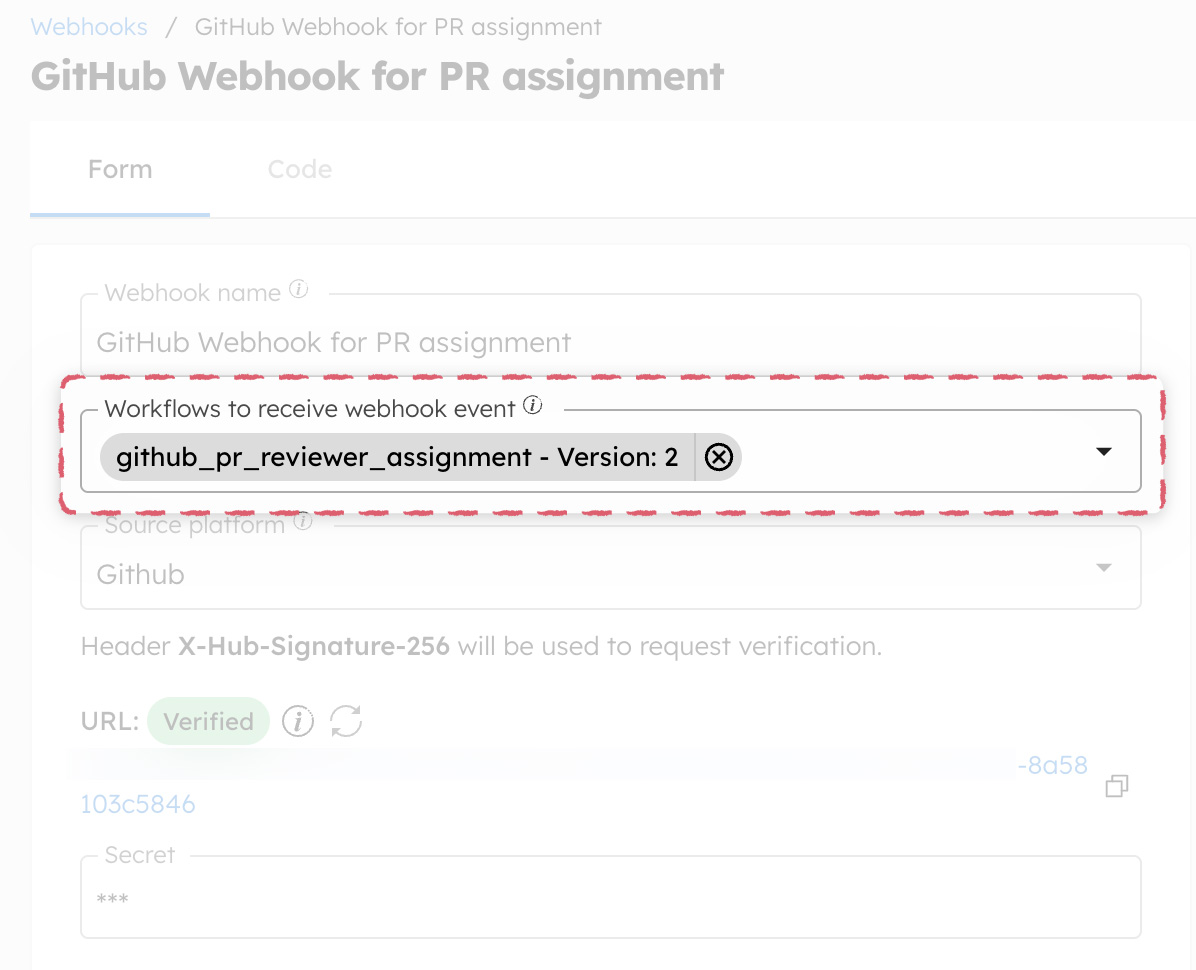
- In your Conductor webhook, make sure to include version 2 of the workflow.
Save the changes, then have a random user submit a pull request with a .py file.
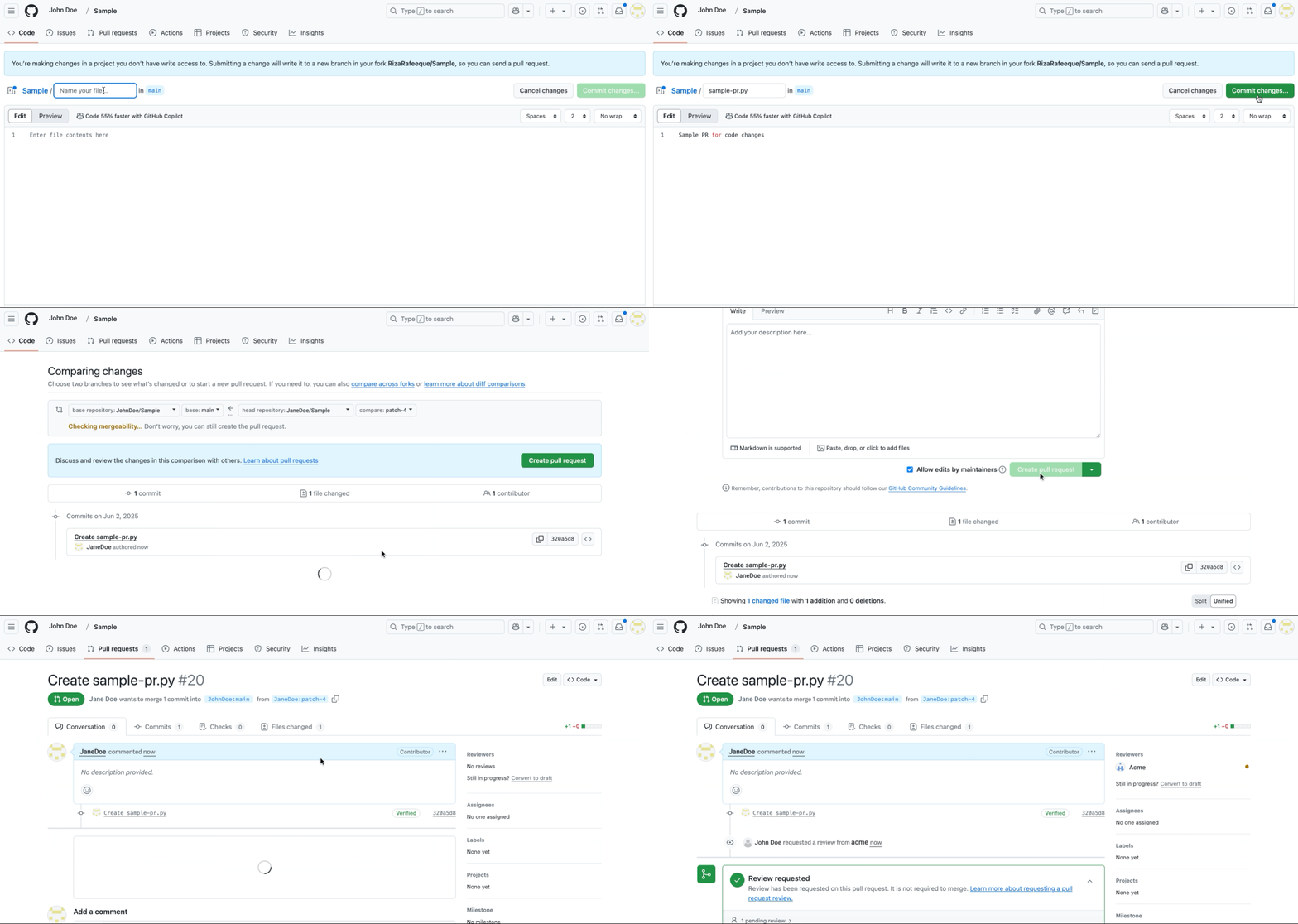
The PR is automatically assigned to reviewer acme (code reviewer). Now submit a PR that includes a .md file.
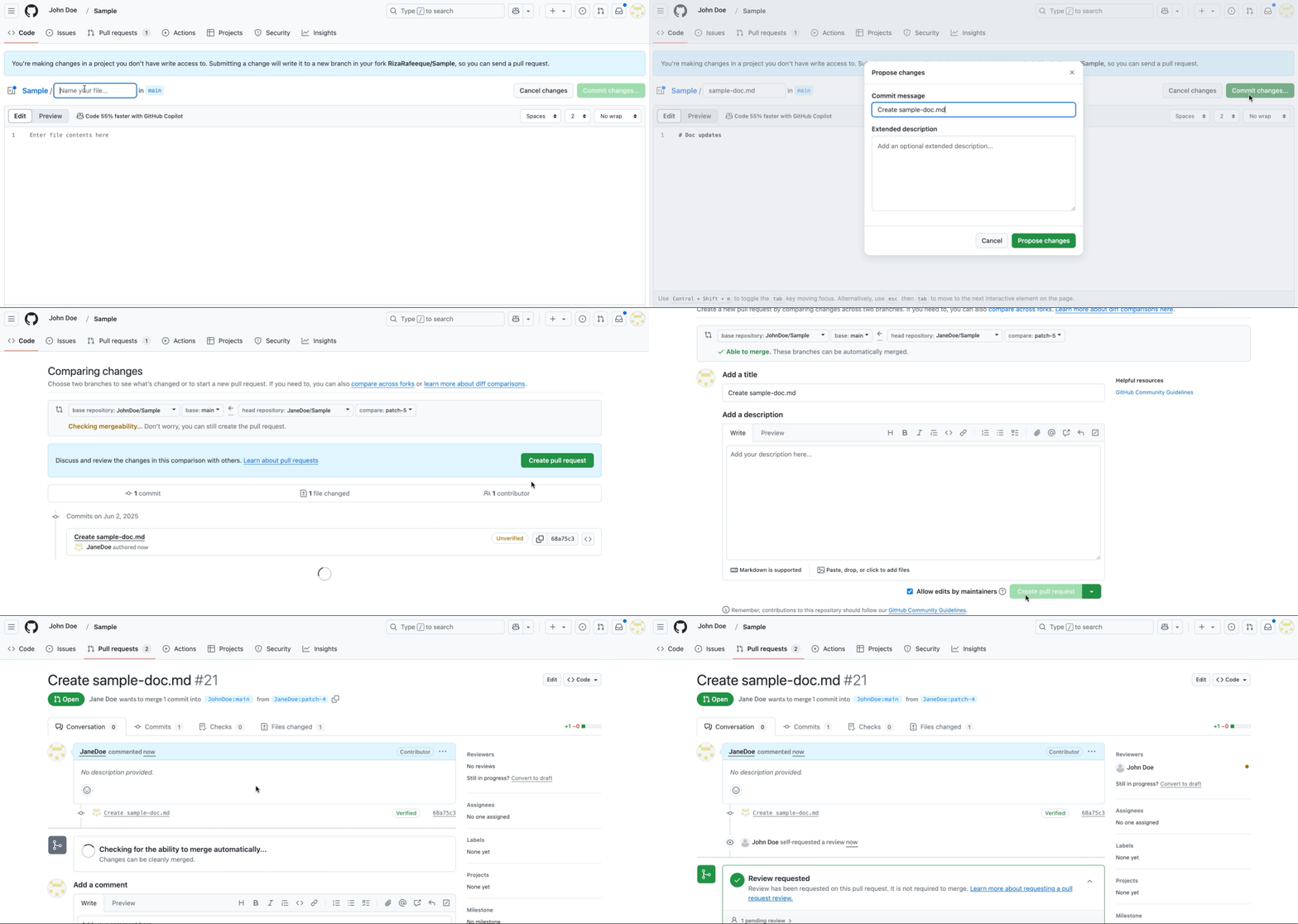
This time, the PR is assigned to JohnDoe (doc reviewer).
With this dynamic routing in place, reviewer assignment is now fully automated based on the nature of the PR, making your review process faster, smarter, and scalable.
Workflow modifications
This dynamic PR reviewer workflow can be extended by:
- Sending notifications to Slack using a Slack webhook when a PR is opened or a reviewer is assigned.
- Replacing the JSON JQ Transform task with a Switch task as your routing logic grows to support multiple reviewer groups or more complex branching.
- Adding approval or QA steps before merging to include additional verification in the process.