Build a Document Retrieval Workflow
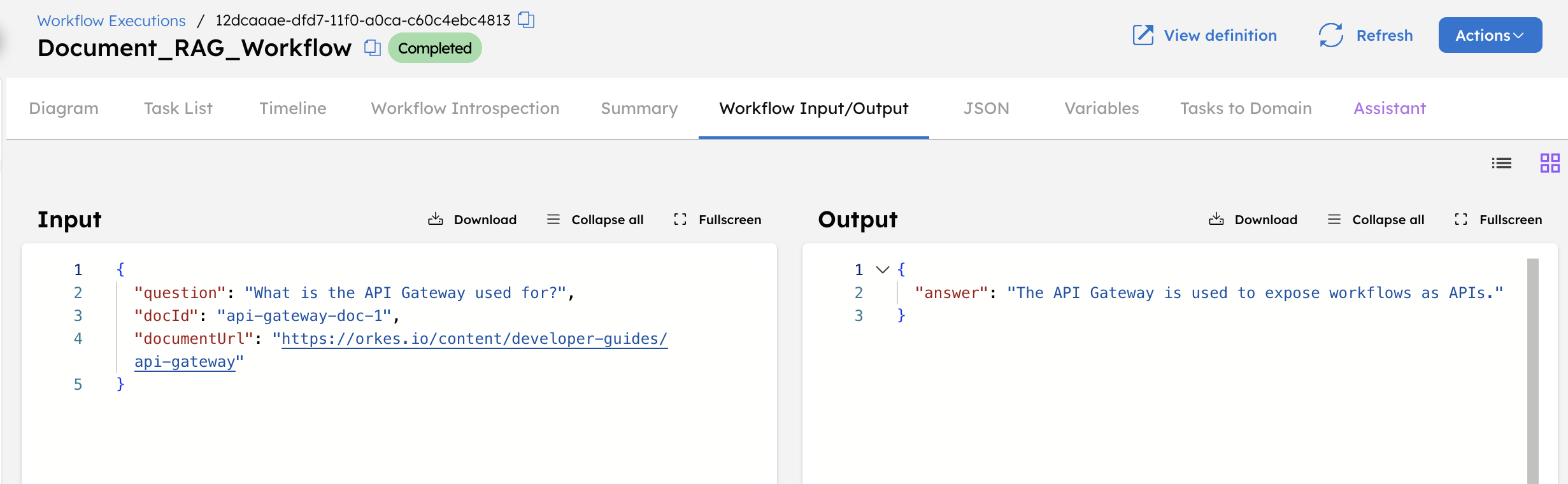
The workflow ingests a document from a URL, indexes its content in a vector database, and performs a semantic search to locate the most relevant sections when a question is asked. A language model then generates an answer using only the retrieved document content.
In this tutorial, you will:
- Integrate an AI model provider
- Create a prompt that constrains answers to retrieved document content
- Integrate Pinecone as the vector database
- Build a workflow that indexes documents and answers questions against them
- Run the workflow and verify the response
To follow along, ensure you have access to the free Orkes Developer Edition.
The document retrieval workflow
This workflow indexes document content and answers questions by retrieving relevant sections at query time. It uses OpenAI for embedding generation and response generation, and Pinecone for vector storage and semantic search. You can substitute these with any other supported providers.
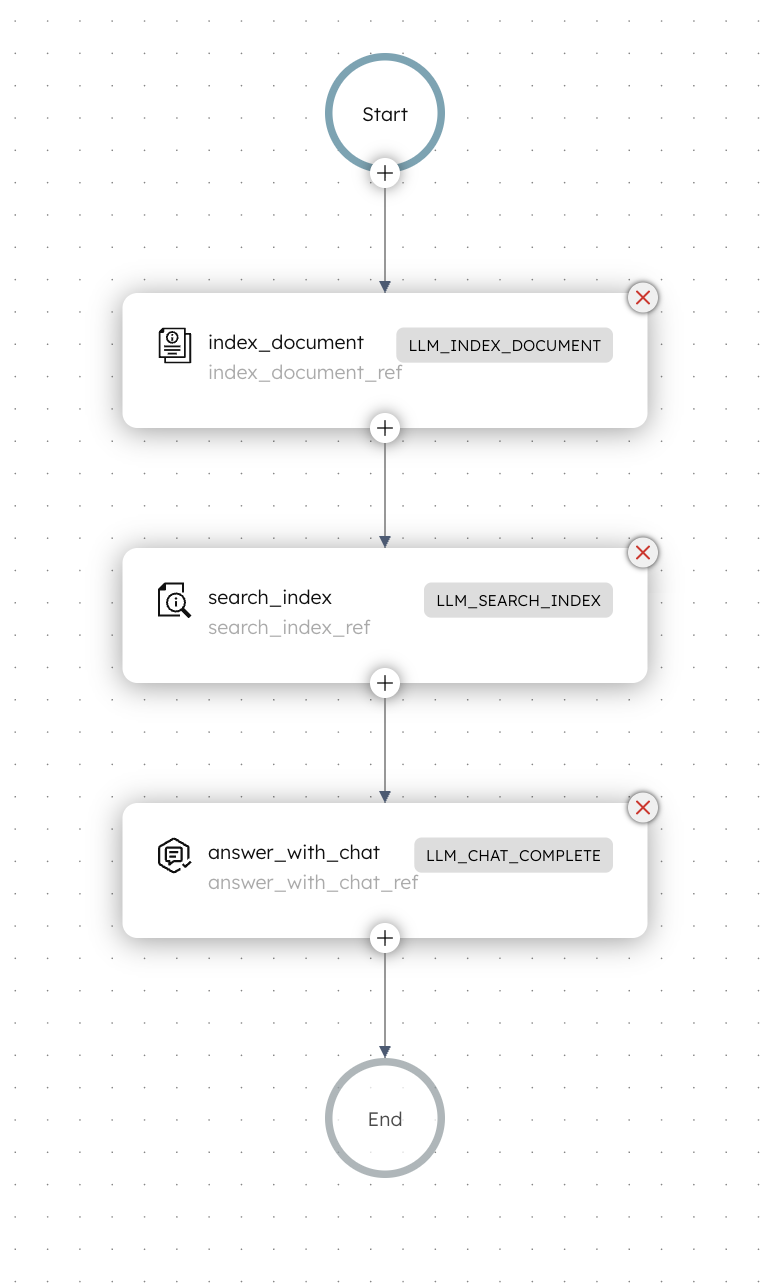
Here is the workflow that you’ll build in this tutorial:
Workflow input:
- documentUrl: The URL of the document to be indexed.
- docId: A unique identifier to store and reference the document in the vector database.
- question: The question that the workflow answers using retrieved document content.
Workflow logic:
- The workflow begins with an LLM Index Document task that retrieves the document from the provided URL, splits the content into chunks, and generates embeddings for each chunk. The generated embeddings are stored in a Pinecone index, making the document available for semantic search.
- Next, an LLM Search Index task converts the user’s question into an embedding and performs a vector similarity search against the indexed document content to identify the most relevant sections.
- An LLM Chat Complete task then answers the question by combining the retrieved document content with the prompt instructions, producing a response grounded in the indexed data.
Workflow output:
- answer: The final answer generated by the LLM based on the retrieved context and question.
Step 1: Integrate an AI model provider
Add an OpenAI integration to your Conductor cluster, then add the required model.
Add OpenAI integration
To add an OpenAI integration:
- Get your OpenAI API Key from OpenAI’s platform.
- Go to Integrations from the left navigation menu on your Conductor cluster.
- Select + New integration.
- Create the integration by providing the following mandatory parameters:
- Integration name: “openAI”
- API Key:
<YOUR_OPENAI_API_KEY> - Description: “OpenAI Integration”
- Ensure that the Active toggle is switched on, then select Save.
The OpenAI integration has been added. The next step is to add a specific model.
Add models
You will add two models to your OpenAI integration:
- text-embedding-3-large – Used to generate embeddings from the input document.
- chatgpt-4o-latest – Used to generate an answer using the retrieved context.
To add a model:
- In the Integrations page, select the + button next to your newly-created OpenAI integration.
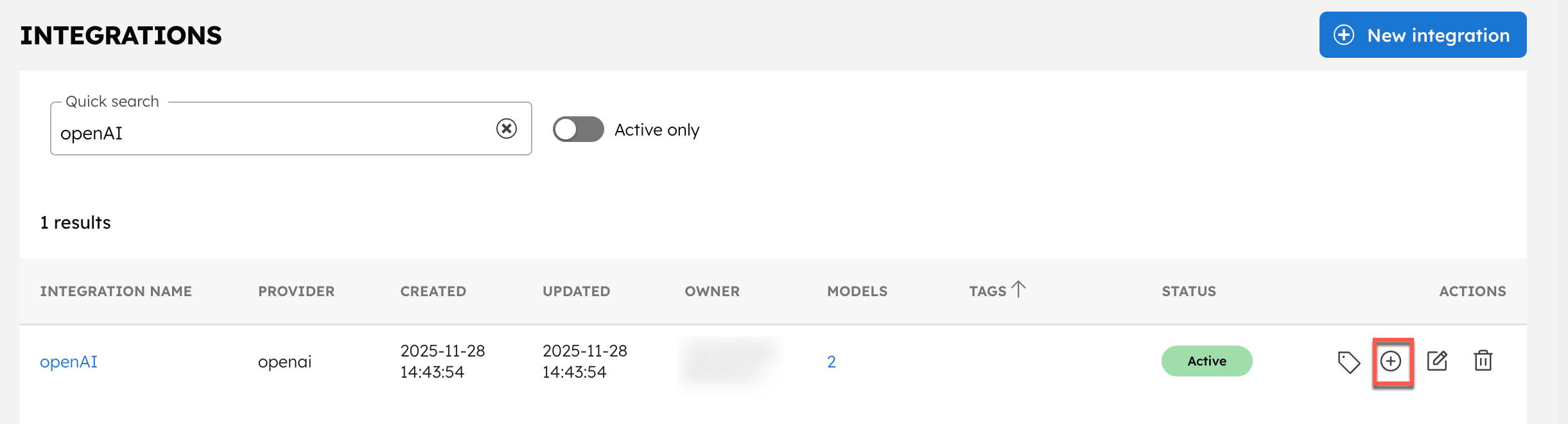
- Select + New model.
- Enter the Model Name as “text-embedding-3-large” and an optional description like “OpenAI’s text-embedding-3-large model”.
- Ensure that the Active toggle is switched on and select Save.
Repeat the steps and create a model for chatgpt-4o-latest.
The integration is now ready to use. The next step is to create an AI prompt for the LLM Chat Complete task, which the workflow uses to generate answers from retrieved context.
Step 2: Create the AI prompt
To create an AI prompt:
- Go to Definitions > AI Prompts from the left navigation menu on your Conductor cluster.
- Select + Add AI prompt.
- In Prompt Name, enter a unique name for your prompt, such as Document-Retrieval.
- In Model(s), select the OpenAI integration you configured earlier. The dropdown lists the integration and its available models. Choose openAI:chatgpt-4o-latest for this prompt.
- Enter a Description of what the prompt does. For example: “Generates an answer to a user question using only the context retrieved from the vector database.”
- In Prompt Template, enter the following prompt:
You are an assistant that answers questions using only the provided context.
If the context does not contain the answer, say that the information is not available.
Keep your responses short and clear.

Question:
${question}

Context:
${retrievedContext}
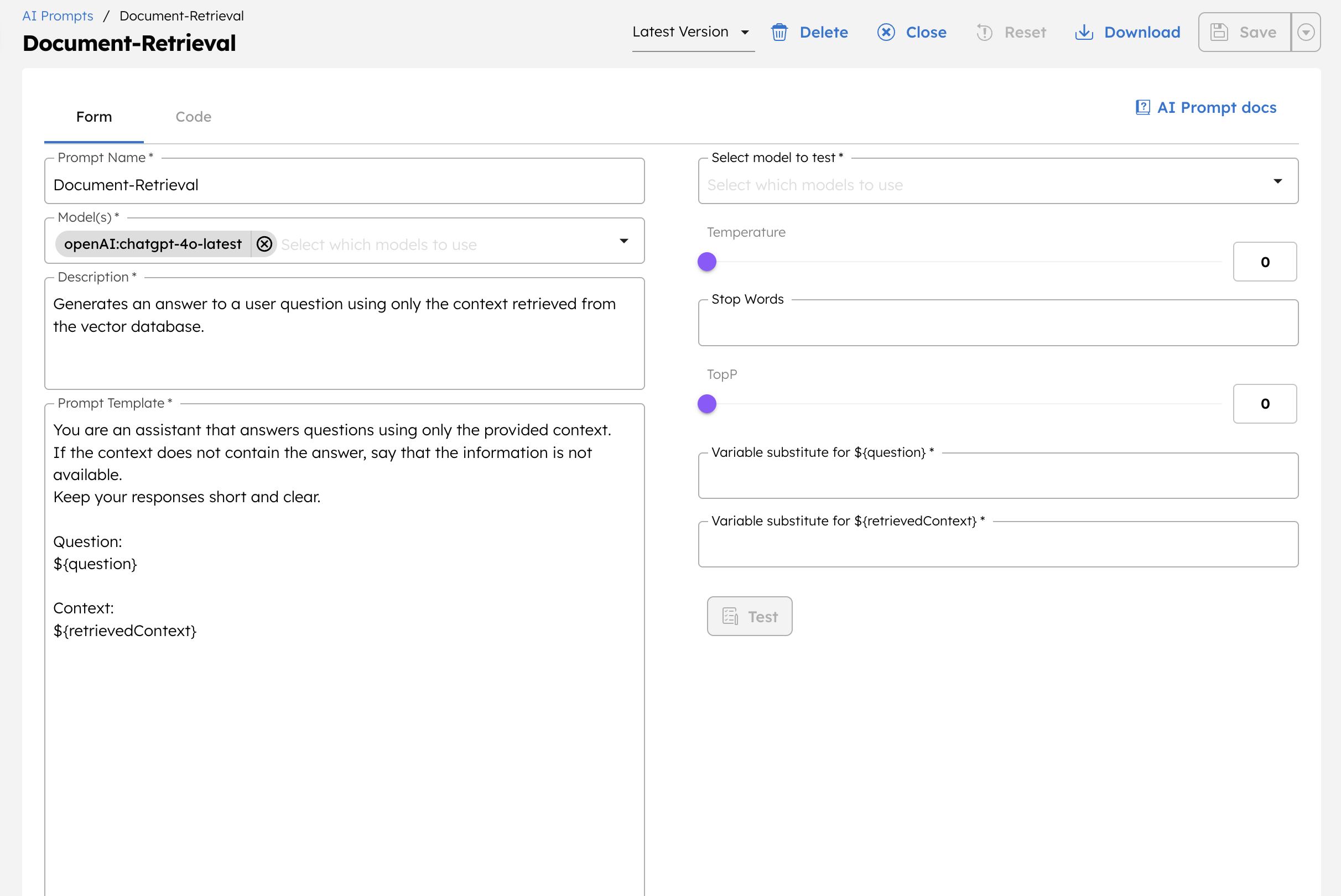
Here, we have defined ${question} and ${retrievedContext} as variables derived from the workflow input and the output of previous tasks. This will become clearer once we incorporate this prompt into the workflow.
- Select Save > Confirm save.
This saves your prompt.
Step 3: Integrate Pinecone as the vector database
The workflow uses Pinecone to store and retrieve embedding vectors. Add a Pinecone integration to your Conductor cluster and create the index required for this workflow.
Get credentials from Pinecone
To get your Pinecone credentials:
- Log in to the Pinecone console, and get the API key and project ID.
- Create an index, setting the Configuration to text-embedding-3-large and the Dimension to 3072.
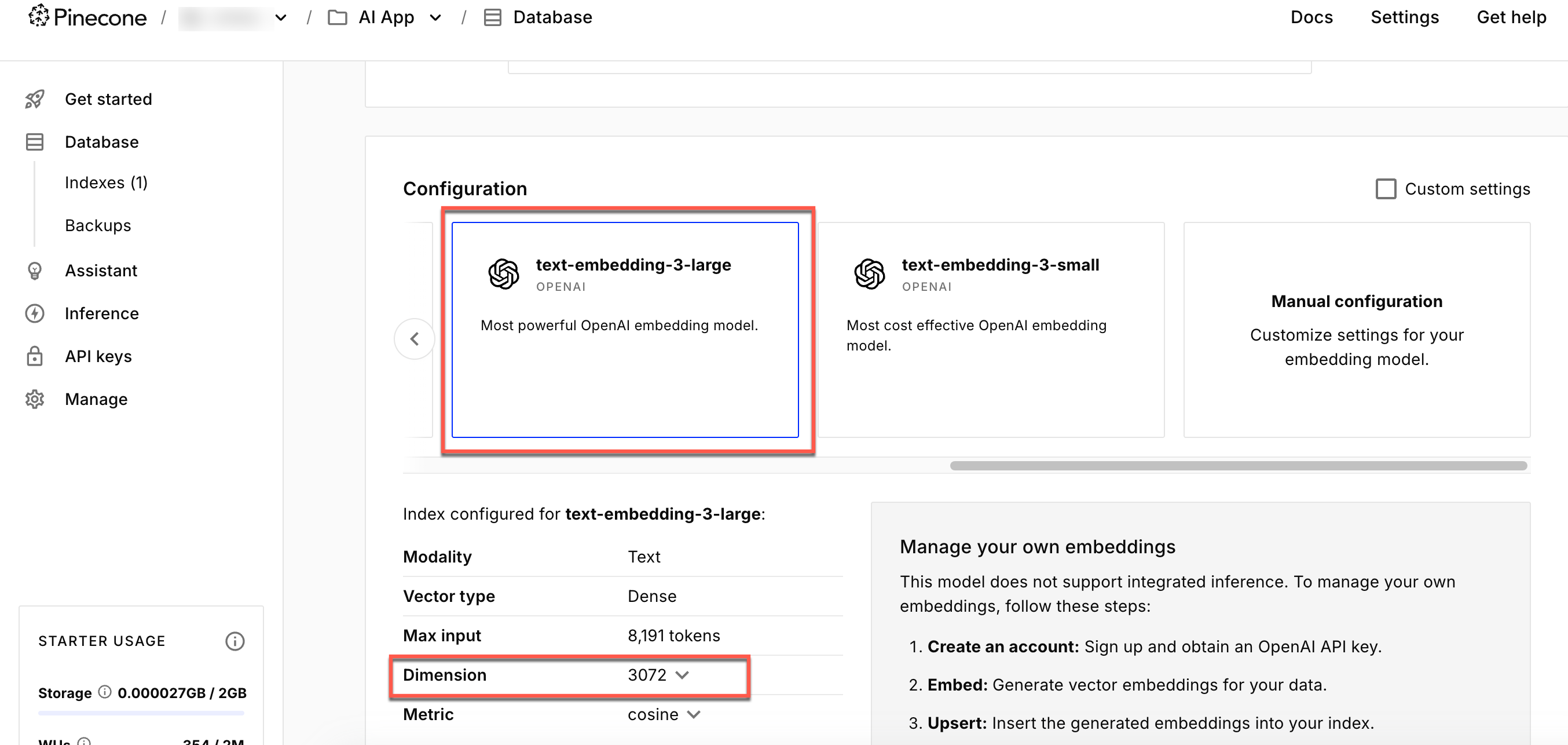
- Note the index name, as you will need to reference it when setting up the Pinecone integration in Conductor.
The text-embedding-3-large model generates vectors with a dimension of 3072. Your Pinecone index must be configured with this same dimension to store and query embeddings correctly. A mismatched dimension will cause Conductor workflow failures.
Add Pinecone integration
To create a Pinecone integration in Conductor:
- Go to Integrations from the left navigation menu on your Conductor cluster.
- Select + New integration.
- Create the integration by providing the following details:
- Integration name: Enter Pinecone.
- API Key:
<YOUR-PINECONE-API-KEY>. - Project name:
<YOUR-PINECONE-PROJECT-NAME>. - Environment: Your index’s region name.
- Description: An optional description.
- Ensure that the Active toggle is switched on, then select Save.
Add indexes
The next step is to add the index to the Conductor cluster.
To add an index:
- In the Integrations page, select the + button next to your newly-created Pinecone integration.
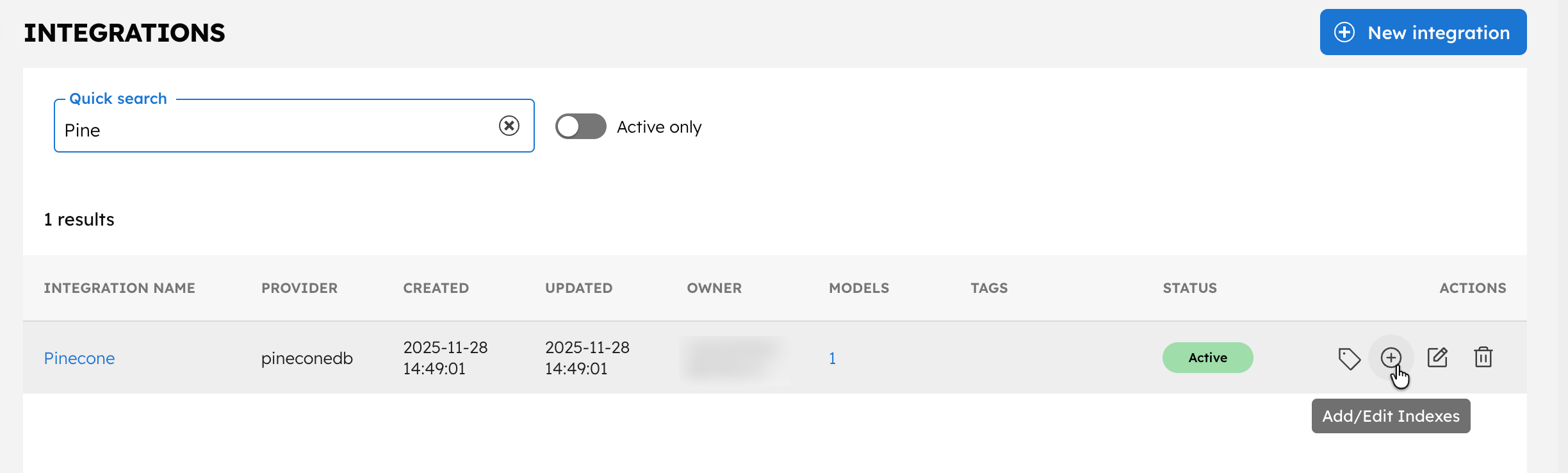
- Select + New Index.
- Enter the Index name as
<YOUR-INDEX-NAME-IN-PINECONE>and a description. - Ensure that the Active toggle is switched on and select Save.
With the integrations and prompt ready, let’s create the workflow.
Step 4: Create the document retrieval workflow
To create a workflow:
- Go to Definitions > Workflow and select + Define workflow.
- In the Code tab, paste the following JSON:
{
 "name": "Document_RAG_Workflow",
 "description": "Index a document in a vector database and answer a question using the indexed content.",
 "version": 1,
 "tasks": [
   {
     "name": "index_document",
     "taskReferenceName": "index_document_ref",
     "inputParameters": {
       "vectorDB": "<YOUR-VECTOR-DB-INTEGRATION>",
       "index": "<YOUR-INDEX-NAME>",
       "namespace": "rag_demo",
       "documentId": "${workflow.input.docId}",
       "documentUrl": "${workflow.input.documentUrl}",
       "embeddingModelProvider": "<YOUR-LLM-PROVIDER>",
       "embeddingModel": "<YOUR-LLM-MODEL>",
       "url": "${workflow.input.documentUrl}",
       "mediaType": "text/html",
       "dimensions": 3072,
       "chunkSize": 1000,
       "chunkOverlap": 200
     },
     "type": "LLM_INDEX_DOCUMENT"
   },
   {
     "name": "search_index",
     "taskReferenceName": "search_index_ref",
     "inputParameters": {
       "vectorDB": "<YOUR-VECTOR-DB-INTEGRATION>",
       "index": "<YOUR-INDEX-NAME>",
       "namespace": "rag_demo",
       "query": "${workflow.input.question}",
       "embeddingModelProvider": "<YOUR-LLM-PROVIDER>",
       "embeddingModel": "<YOUR-LLM-MODEL>",
       "maxResults": 3,
       "dimensions": 3072
     },
     "type": "LLM_SEARCH_INDEX"
   },
   {
     "name": "answer_with_chat",
     "taskReferenceName": "answer_with_chat_ref",
     "inputParameters": {
       "llmProvider": "<YOUR-LLM-PROVIDER>",
       "model": "<YOUR-LLM-MODEL>",
       "instructions": "<YOUR-LLM-PROMPT>",
       "messages": [
         {
           "role": "user",
           "message": "Question: ${workflow.input.question}\n\nContext:\n${search_index_ref.output.result[0].text}"
         }
       ],
       "temperature": 0,
       "topP": 0,
       "jsonOutput": false,
       "promptVariables": {
         "retrievedContext": "${search_index_ref.output.result[0].text}",
         "queryText": "${workflow.input.question}"
       }
     },
     "type": "LLM_CHAT_COMPLETE"
   }
 ],
 "inputParameters": [
   "documentUrl",
   "docId",
   "question"
 ],
 "outputParameters": {
   "answer": "${answer_with_chat_ref.output.result}"
 },
 "schemaVersion": 2
}
- Select Save > Confirm.
- After saving, update the LLM Index Document task with your actual values:
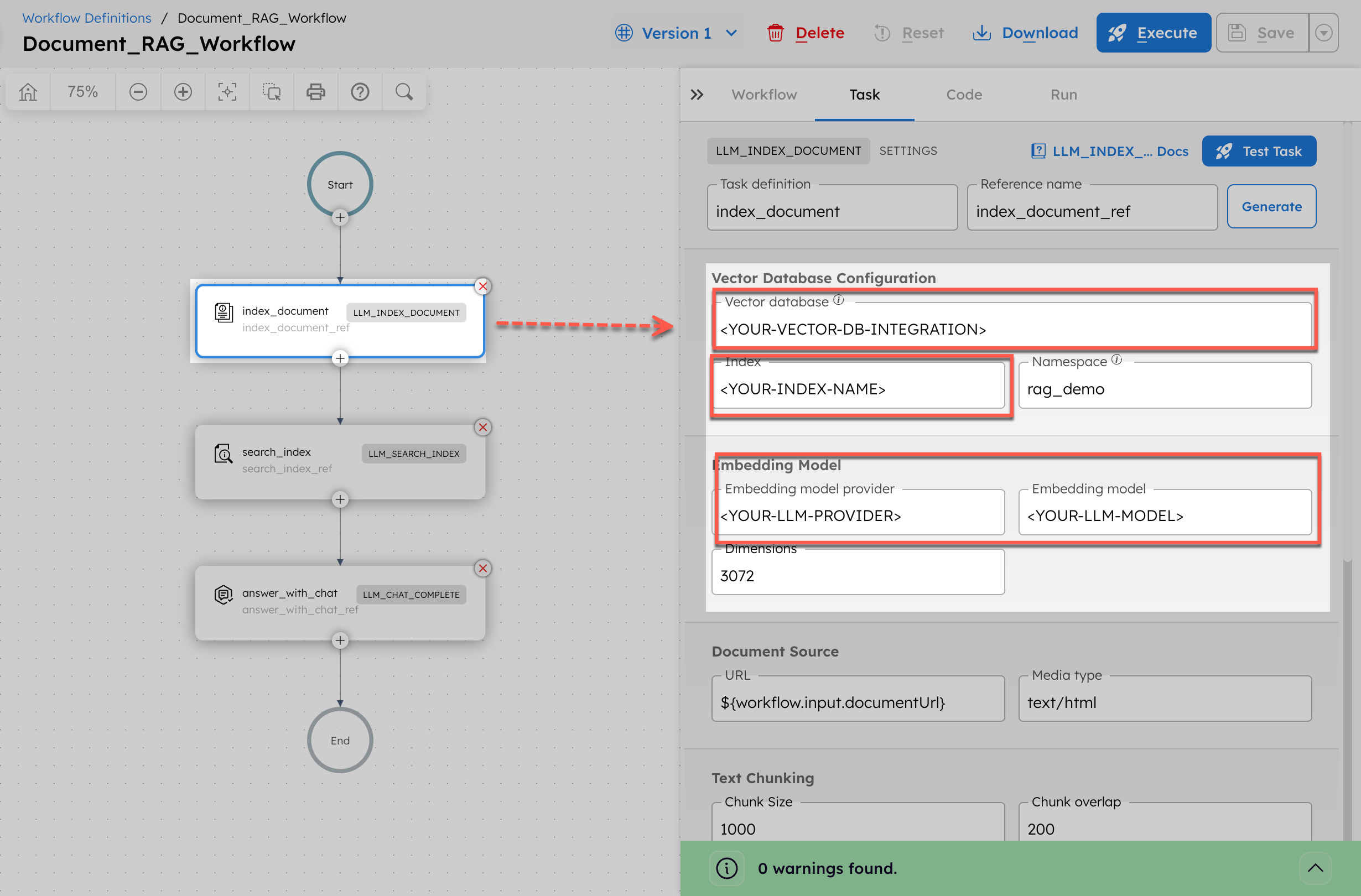
- In Vector database, replace
<YOUR-VECTOR-DB-INTEGRATION>with your integration name created in Step 3. - In Index, replace
<YOUR-INDEX-NAME>with your index name created in Step 3. - In Embedding model provider, replace
<YOUR-LLM-PROVIDER>with your OpenAI integration name created in Step 1. - In Model, replace
<YOUR-LLM-MODEL>withtext-embedding-3-large.
- Update the LLM Search Index task with your actual values:
- In Vector database, replace
<YOUR-VECTOR-DB-INTEGRATION>with your integration name created in Step 3. - In Index, replace
<YOUR-INDEX-NAME>with your index name created in Step 3. - In Embedding model provider, replace
<YOUR-LLM-PROVIDER>with your OpenAI integration name created in Step 1. - In Model, replace
<YOUR-LLM-MODEL>withtext-embedding-3-large.
- In Vector database, replace
- Update the LLM Chat Complete task with your actual values:
- In LLM provider, replace
<YOUR-LLM-PROVIDER>with your OpenAI integration name created in Step 1. - In Model, replace
<YOUR-LLM-MODEL>withchatgpt-4o-latest. - In Prompt template, replace
<YOUR-LLM-PROMPT>with your prompt created in Step 2. - Make sure to update the promptVariable as follows:
- retrievedContext -
${search_index_ref.output.result[0].text} - queryText -
${workflow.input.question}
- retrievedContext -
- In LLM provider, replace
- Select Save > Confirm.
Step 5: Run the workflow
To run the workflow using Conductor UI:
- From your workflow definition, go to the Run tab.
- Enter the Input Params.
// example input params
{
 "documentUrl": "https://orkes.io/content/developer-guides/api-gateway",
 "docId": "api-gateway-doc-1",
 "question": "What is the API Gateway used for?"
}
- Select Execute.
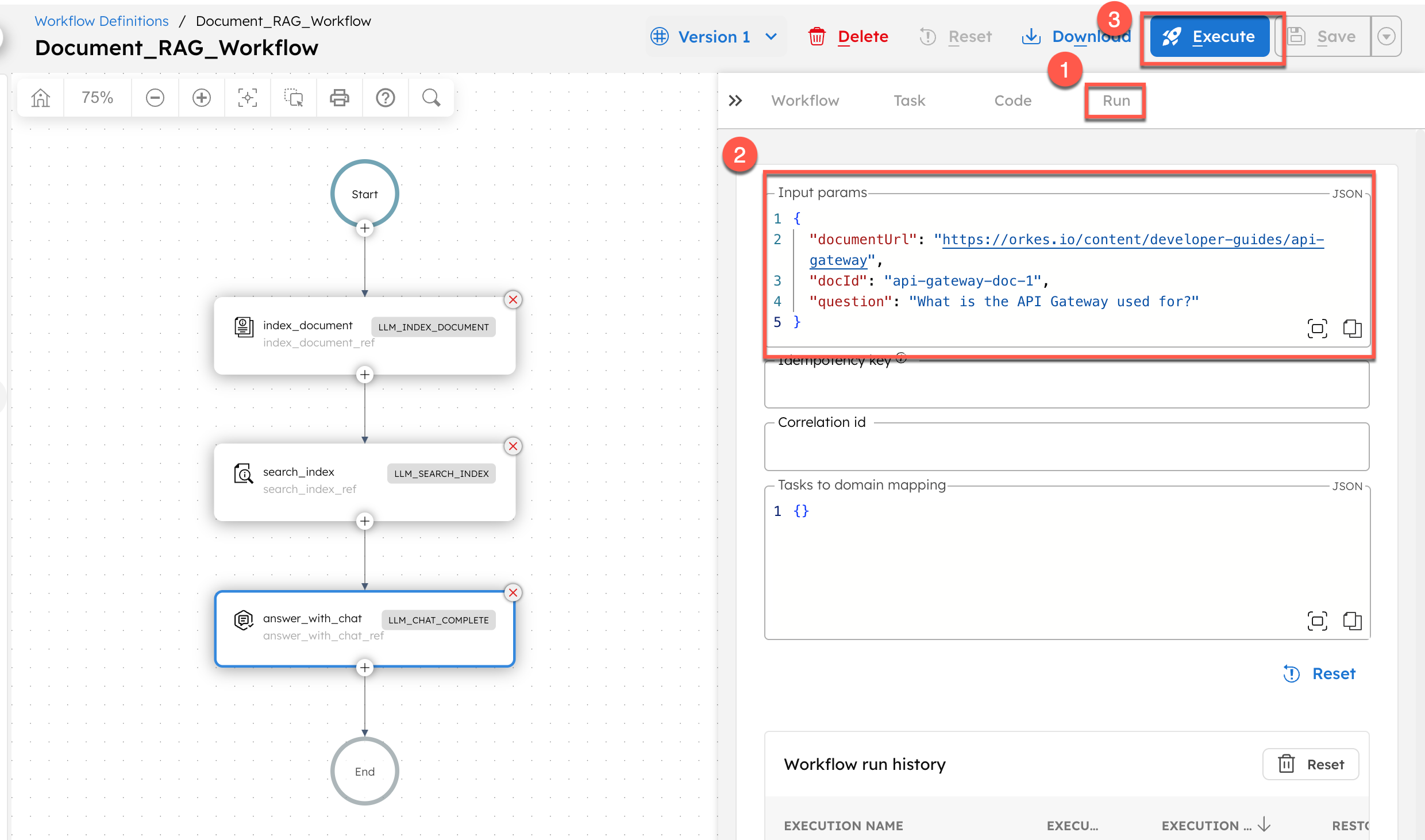
The workflow retrieves the stored document and generates an answer.